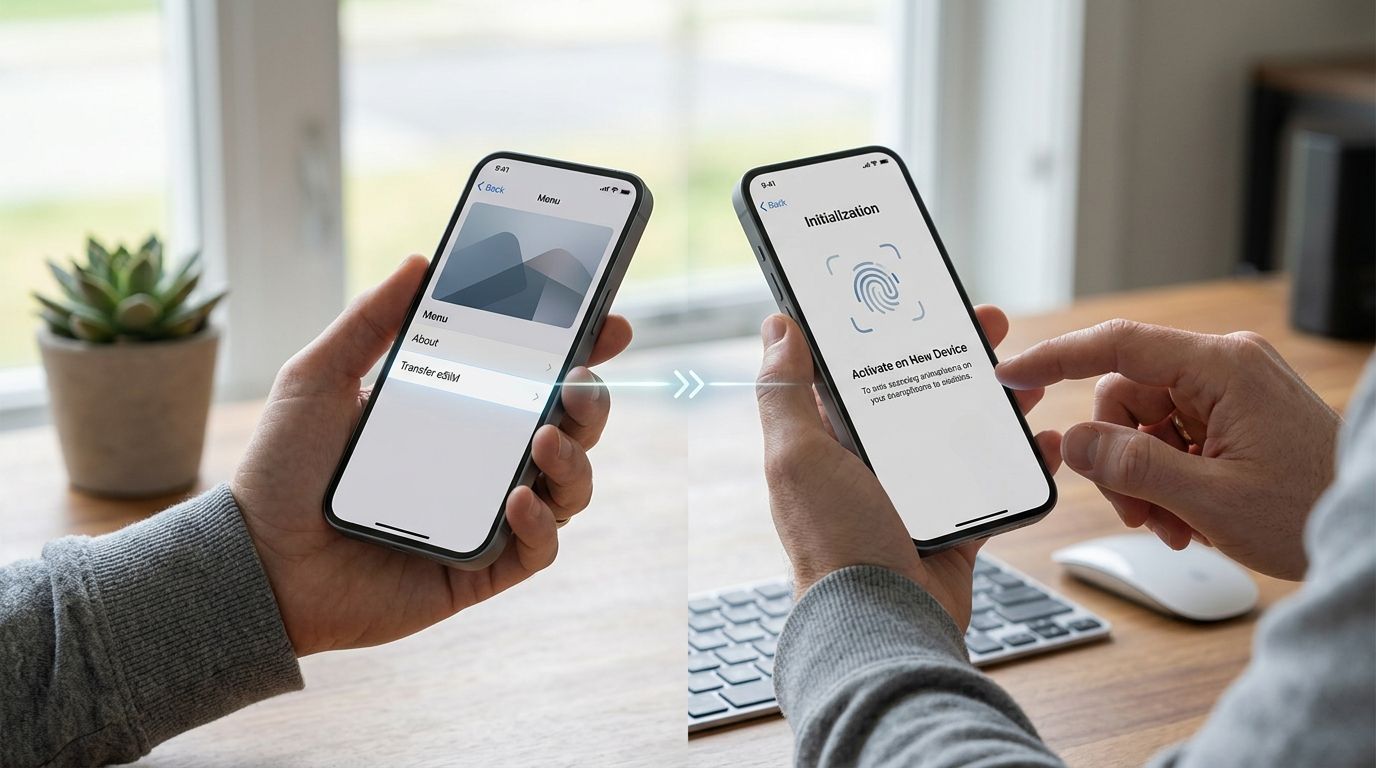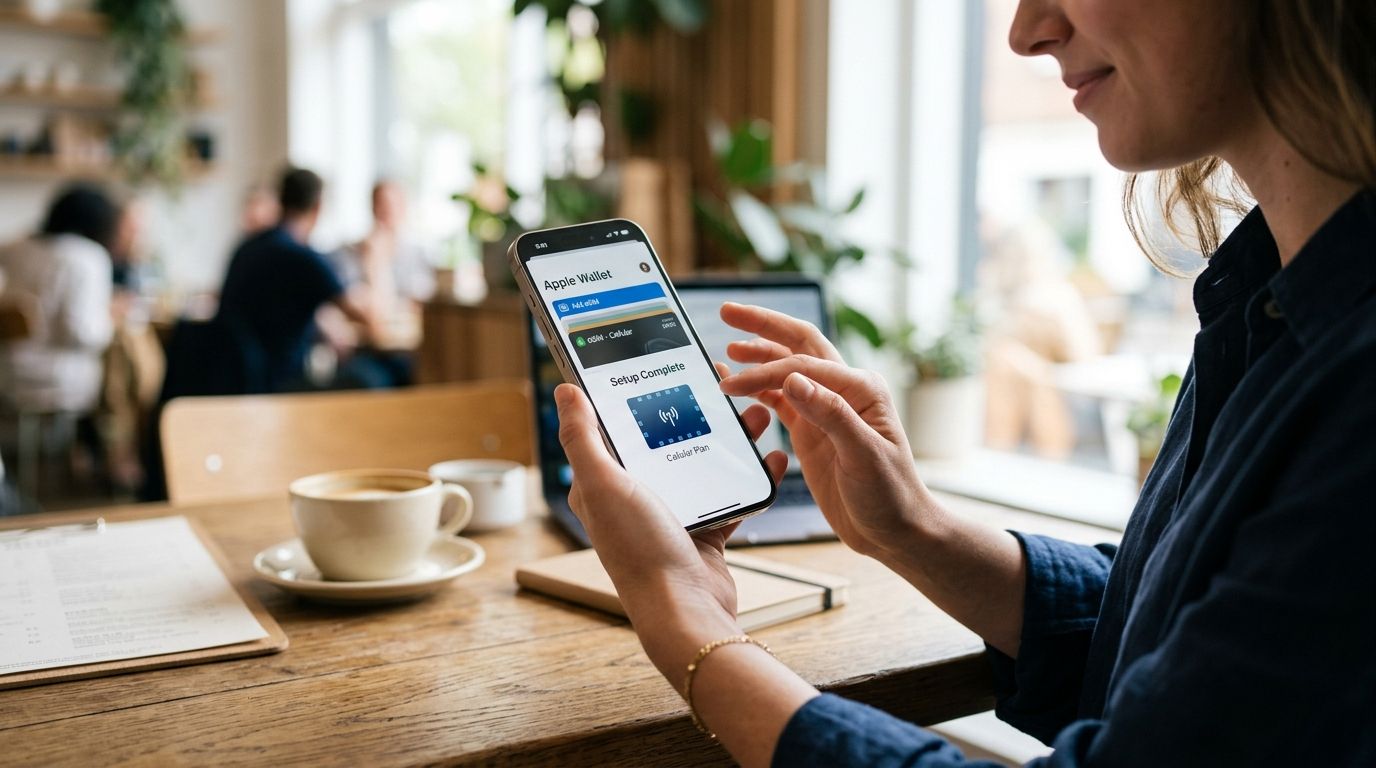
Watching your data bar hit zero mid-trip is the worst kind of interruption — no maps, no translation app, no way to call a ride. Instead of manually checking your balance every few hours, set up esim auto top up once inside the A-sim app and your eSIM refills itself before it runs dry.
- A-sim's esim auto top up refills your data plan automatically once usage drops below a threshold you set.
- Setup takes under three minutes from the app's Usage screen — no computer needed.
- A saved payment method and an active data or Wi-Fi connection are required for the trigger to fire.
- Manual one-tap top up stays available anytime, even with auto top up switched off.
Why this matters
Running out of data abroad usually happens at the worst moment — walking off a flight, arriving at a new hotel, or navigating a city with no local SIM shop in sight. Checking a usage percentage manually every day is the kind of chore travelers forget until it's too late.
Esim auto top up removes that guesswork. Set a threshold once at the start of your A-sim trip, and the plan tops itself up in the background while you're still connected, so the only thing you notice is that your data never actually stops.
Before you start
- An active A-sim eSIM already installed on your iPhone or Android device — if you haven't connected one yet, follow the iPhone one-tap setup guide first.
- A saved payment method on your A-sim account. Auto top up charges whatever card is on file at the moment the threshold triggers.
- The gotcha: auto top up can only fire when your device has an active data or Wi-Fi connection to check usage against. If you're in airplane mode, in a dead zone, or your last eSIM has fully expired rather than just run low on data, the trigger won't fire until you reconnect — plan your threshold with that in mind before you land somewhere with patchy signal.
Set up your esim auto top up trigger
- Open the A-sim app and tap My eSIMs.
- Select the active eSIM for the country or region you're using.
- Tap Manage Data.
- Toggle on Auto Top-Up.
- Set your threshold — the percentage of remaining data that triggers a refill. A lower number like 5% leaves almost no buffer; most travelers in low-signal regions do better setting it closer to 20%.
- Confirm the payment method attached, or add a new one.
- Tap Save.
Expected result: the Usage screen now shows an "Auto Top-Up: On" badge with your chosen threshold displayed underneath your data bar.
Choose your top-up data size
- From the Auto Top-Up settings screen, tap Top-Up Plan.
- Pick a data package size — matching your original plan works for short trips, a larger package makes sense if you're extending your stay.
- Tap Confirm to lock it in as the default top-up.
Expected result: the selected package now shows as your standing top-up choice, and every future auto-trigger applies that exact size until you change it.
Trigger a manual one-tap top up instead
Some trips don't need automation — a short weekend abroad might only need one refill, on your terms. Whenever you want data immediately, skip the threshold entirely:
- Open My eSIMs and select the relevant eSIM.
- Tap Top Up Now.
- Pick your data size and confirm payment.
Expected result: new data credits to the eSIM within minutes, visible right away on the Usage bar — no waiting for a threshold to trip.
Set up your eSIM before you fly
Install an A-sim eSIM in one tap and turn on auto top up before departure.
Troubleshooting
- Auto top-up didn't trigger even after hitting the threshold. Your device likely had no active data or Wi-Fi connection at that moment. Reconnect and check the Usage screen again — the app re-checks as soon as it's back online.
- Payment declined at the moment of trigger. Update the card on file in account settings before your threshold hits, especially before a long flight or remote leg of a trip.
- Threshold set too low. A 5% buffer leaves almost no room in low-signal areas where the trigger check itself needs connectivity. Move it up to 15-20% if you're heading somewhere rural.
- Plan expired instead of just running low on data. Auto top up refills data on an active eSIM — it doesn't renew an eSIM whose validity window has closed. Check the expiration date under My eSIMs; an expired plan needs a fresh eSIM, not a top up.
- Top-up applied to the wrong eSIM. If you have multiple country or regional eSIMs installed for one trip, double-check the eSIM name under My eSIMs before saving your auto top up settings.
Customize your workflow
Once auto top up is running, the next decision is sizing your plan correctly instead of refilling constantly. If you're burning through data fast on video calls or navigation, compare options on the eSIM plans ranked by data speed for 2026 before picking your default top-up size — a faster tier with more headroom often means fewer triggers per trip.
Heavy streamers and remote workers abroad in 2026 sometimes skip thresholds altogether by choosing an unlimited allotment instead of chasing top-ups. Either path works with the same A-sim account — the auto top up trigger just needs a plan size assigned to it.
FAQ
What is esim auto top up?
Esim auto top up is a setting inside the A-sim app that automatically refills your eSIM data plan once usage drops below a threshold you set, so you don't run out of data mid-trip in 2026.
Does esim auto top up work without Wi-Fi?
No. The trigger needs an active data or Wi-Fi connection to check your usage percentage. In a complete dead zone, auto top up won't fire until your device reconnects.
Can I turn off auto top up mid-trip?
Yes. Open My eSIMs, select the eSIM, tap Manage Data, and toggle Auto Top-Up off. You can still top up manually anytime with the Top Up Now button.
What happens if my payment method fails during auto top up?
The top up won't process and your data stays at the low balance until you update the payment method in account settings and trigger a manual top up.
What top-up threshold should I set for travel abroad?
Most travelers set the threshold around 15-20% remaining. A lower threshold like 5% leaves little buffer, especially in areas with weak signal where the app needs a connection to check usage.
Does auto top up work on both iPhone and Android?
Yes. A-sim's auto top up setting is available in the app on both iPhone and Android once an eSIM is installed and active on the device.
Will auto top up renew an expired eSIM plan?
No. Auto top up adds data to an active eSIM. If the eSIM's validity window has ended rather than just its data balance, you need to install a new eSIM instead.
Can I change the top-up data size after setting it up?
Yes. Go to Auto Top-Up settings, tap Top-Up Plan, and select a new data size — it becomes the default for every future trigger.
One last thing
Set your threshold before you board, not after you land — the moment most travelers actually notice a low data bar is the worst possible moment to be fiddling with app settings on unfamiliar Wi-Fi. Set it once at your gate in 2026, and the rest of the trip runs on autopilot.