Video streaming on an eSIM abroad uses data according to the streaming app’s quality setting and how long you watch; the eSIM itself does not make the same video consume more data. Your total mobile usage also includes background activity, downloads and any devices connected through your phone’s hotspot, so lower video quality and download over Wi-Fi before you travel.
- How much data does video streaming use on eSIM abroad? Quality and viewing time determine consumption.
- Netflix lists up to 0.3 GB per hour on Low and 7 GB per hour for Ultra HD.
- Use lower video quality on mobile data; download episodes over Wi-Fi before travelling.
- Netflix’s published limits are planning references, not universal rates for every streaming app.
How much data does video streaming use on eSIM abroad?
For 2026 planning, Netflix’s Help Center guidance, How to control how much data Netflix uses, provides useful reference figures. These are Netflix’s published per-device limits, not measured averages for every video service. Apply them to Netflix viewing, then check the equivalent data controls in your other apps.
| Netflix playback setting | Published data use | Best for | Benefit | Trade-off |
|---|---|---|---|---|
| Low | Up to 0.3 GB per hour | Keeping viewing within a small allowance | Lowest listed consumption | Basic picture quality |
| Medium | Up to 0.7 GB per hour | Standard-definition viewing | Less data than the listed HD limit | Less detail than HD |
| High: HD | Up to 3 GB per hour | Viewing when data is not the constraint | Sharper picture than standard definition | Uses substantially more data |
| High: Ultra HD | Up to 7 GB per hour | Compatible screens on Wi-Fi | Highest listed picture quality | Highest listed data consumption |
An upper limit is not an average. Netflix’s automatic setting adjusts playback to the connection, while actual consumption depends on the content and playback conditions. Do not apply the Ultra HD figure to every session just because your phone has a high-resolution screen.
Start with your likely viewing time, not the size of the largest plan. If you also need maps, messaging and browser access, use the guide to data needs for a two-week trip abroad to consider the rest of your travel usage.
Why this matters
A travel data allowance serves more than entertainment. You also need connectivity for directions, tickets, accommodation details and messages. Letting a streaming app choose its own quality gives it control over part of that allowance.
For your 2026 trip, separate essential connectivity from optional viewing. Download entertainment before departure, then use mobile streaming when you actually need it. That keeps a long transfer or rainy afternoon from taking data you intended to save for the rest of the trip.
The important distinction is between connection speed and data consumption. A faster connection can support higher-quality playback, but speed is not a measure of how much data remains. A smooth video does not mean it is using little data.
Low quality: Up to 0.3 GB per hour
Netflix lists its Low playback setting at up to 0.3 GB per hour. This is the most data-conscious option in its published playback-quality guidance. Choose it when watching matters more than image detail.
Low quality suits casual viewing on a phone, especially when you want to preserve mobile data for other travel tasks. The compromise is visible: fine detail and text within the video are less clear. If you need to read a tutorial’s on-screen instructions, basic quality can work against you.
Best for: conserving a limited allowance. Select the setting deliberately rather than assuming a weak connection will keep usage low. Adaptive playback can increase quality again when your connection improves.
Also check whether you changed the account’s playback setting or the mobile app’s cellular-data setting. Netflix provides separate controls, and their names are not interchangeable. Follow the setting that applies to the device and connection you will use abroad.
Medium quality: Up to 0.7 GB per hour
Netflix lists Medium playback quality at up to 0.7 GB per hour. It is a standard-definition option for viewers who want to limit consumption without choosing the lowest published quality level.
Medium is a practical starting point for ordinary phone viewing. Its benefit is lower data use than the published HD limit; its drawback is reduced detail compared with HD. Check a scene containing subtitles or small text before deciding that the picture is adequate.
Best for: standard-definition viewing with a defined data budget. Keep the setting consistent while estimating your trip’s viewing needs. Switching between Medium and automatic playback makes a single hourly estimate less useful.
Do not interpret 0.7 GB per hour as a universal standard-definition rate. Different services encode video differently. Use Netflix’s figure for Netflix planning, not as a promise about another app’s consumption.
HD quality: Up to 3 GB per hour
Netflix lists HD playback under its High setting at up to 3 GB per hour. HD gives you a clearer image than standard definition, but that improvement comes with a larger data requirement.
The trade-off becomes important when you watch long programmes or connect a larger screen. A tablet or laptop can make the extra detail more useful. It also makes mobile streaming easier to treat like home broadband, even though your travel allowance remains limited.
Best for: sharper viewing when you have deliberately budgeted for it. Use Wi-Fi for longer HD sessions when preserving your eSIM allowance is the priority. If you choose cellular HD, check remaining data afterwards rather than relying on playback quality alone.
HD does not have one fixed consumption rate across all apps. Resolution describes the picture’s dimensions, not the exact amount of information transferred. Compression and the service’s chosen video bitrate also affect usage.
Ultra HD quality: Up to 7 GB per hour
Netflix lists Ultra HD playback at up to 7 GB per hour. That is the largest figure in its playback-quality guidance, and it applies to supported Ultra HD viewing—not every video labelled High.
Ultra HD requires compatible content, a supported device and the relevant service requirements. Selecting the highest quality setting does not mean every phone will receive an Ultra HD stream. Check what the app actually supports before using this figure in your budget.
Best for: compatible large-screen viewing over Wi-Fi. The benefit is extra picture detail. The disadvantage for travel is the published data requirement, which makes long cellular sessions difficult to fit within a modest allowance.
Avoid making Ultra HD your default just because the connection handles it. For mobile viewing, choose the lowest quality that remains comfortable to watch. Save the higher setting for a situation where picture detail matters and data consumption is acceptable.
Why video streaming data use varies
Your destination does not change the amount of information in an identical video stream. Your app and viewing behaviour change what gets transferred. Check these factors before estimating usage:
- Quality setting: Low, Medium, HD and Ultra HD use different amounts of data. Automatic playback can change quality during a session.
- Viewing time: A longer session transfers more video. Autoplay can extend viewing beyond the episode you intended to watch.
- Compression and bitrate: Services use different methods to deliver a picture. The same resolution does not guarantee the same consumption.
- Preloading: Apps can load video ahead of what you have watched. Skipping clips does not undo data already transferred.
- Connected devices: A laptop or tablet using your hotspot draws from the phone’s cellular connection. Its other background tasks also use data.
- Other app activity: Downloads, cloud backups and updates share the connection. Total eSIM usage is not necessarily video usage alone.
Control the quality first, then control the session length. Those are direct choices you can make without needing to understand the app’s video encoding. Disabling autoplay also makes it easier to stop when your planned viewing ends.
How do I calculate my streaming data budget for 2026?
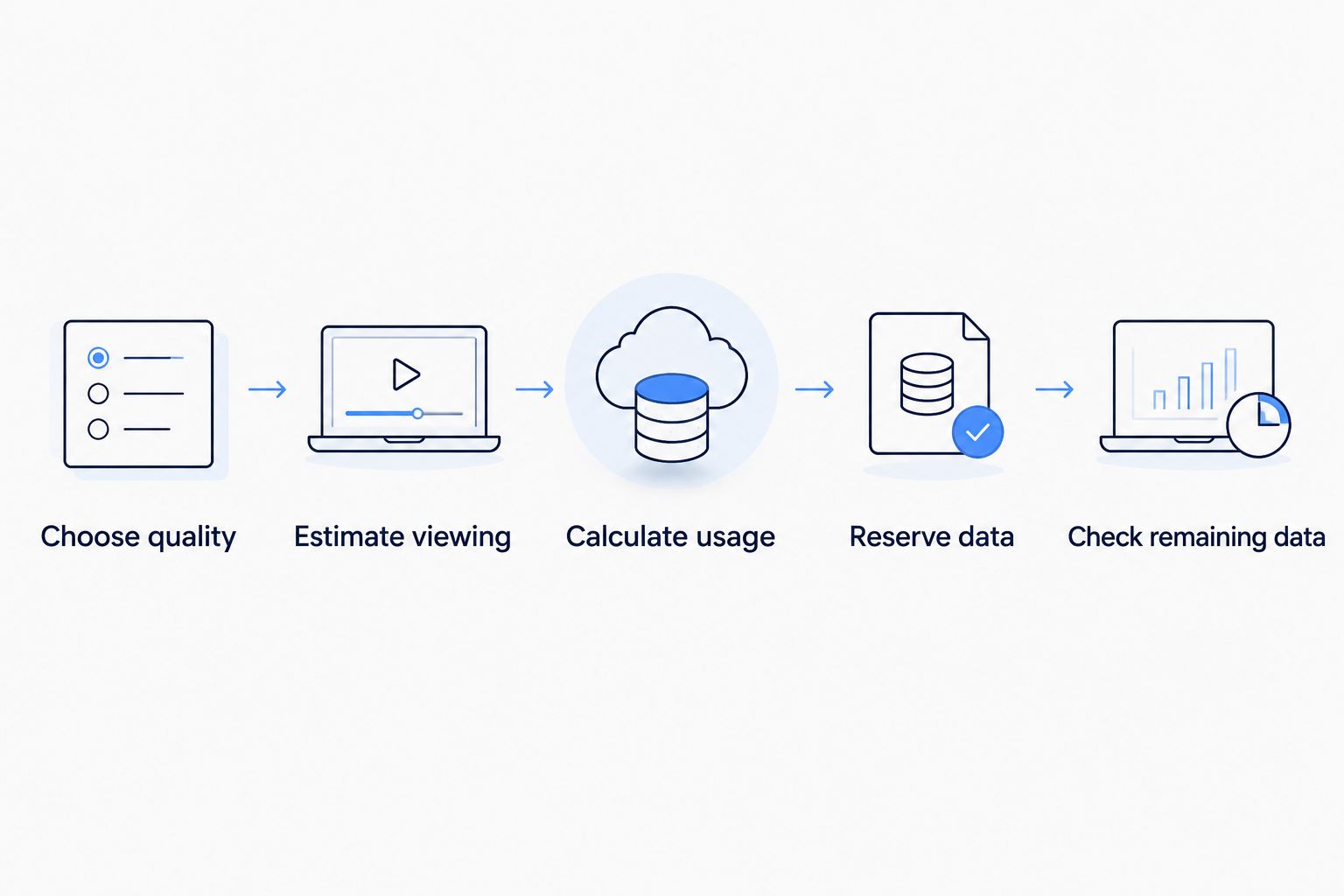
Use published hourly consumption × planned viewing hours as a planning calculation. With an upper-limit figure, the result is an upper-limit estimate under that setting—not a prediction of exactly what your phone will record.
- Choose quality. Select the playback setting you intend to keep while abroad. Avoid calculating for Low and then leaving the app on automatic.
- Estimate viewing. Count the time you expect to stream on cellular data. Exclude episodes you have already downloaded over Wi-Fi.
- Calculate usage. Multiply the service’s hourly figure by your planned hours. Keep the service’s qualifications, such as up to, attached to the result.
- Reserve data. Leave room for your other travel activities. Do not assign the entire allowance to entertainment.
- Check remaining data. Compare your plan balance with your actual viewing and adjust the setting if needed.
For example, 2 hours of Netflix at its Medium limit gives a planning figure of up to 1.4 GB. The same 2 hours at its HD limit gives up to 6 GB. Those figures are arithmetic based on Netflix’s published limits, not test results or guaranteed consumption.
Use actual usage to refine your 2026 budget. Your phone’s counter and the provider’s usage display can update at different times, so use the provider’s displayed balance when checking what remains on the plan. Check the phone’s measurement period before comparing totals.
How can I reduce streaming data use before travelling?
Download over Wi-Fi before you leave, then set a cellular playback limit. Downloads avoid cellular streaming only when the video has already been saved and the app plays that saved copy. Downloading an episode through your eSIM still consumes mobile data.
Check that your chosen title supports offline viewing. Streaming services impose their own download and playback conditions, so open the download section before relying on it during a journey. Confirm that the saved programme plays without an internet connection.
Use this checklist for your 2026 departure:
- Set the streaming app’s cellular quality or data-saving option.
- Set downloads to Wi-Fi only where the app offers that control.
- Disable autoplay if you want sessions to end deliberately.
- Download your planned entertainment while connected to Wi-Fi.
- Check whether your phone permits automatic switching from Wi-Fi to cellular.
- Pause unrelated backups or updates that you do not need during the trip.
Phone-wide data-saving modes can help restrict background activity, but they do not replace the video app’s own controls. A streaming app can still transfer substantial data while you actively watch it. Set both controls rather than relying on one switch.
Where does a travel eSIM app help?
A-sim travel eSIMs are best for travellers who want app-based usage management and top-ups. A-sim offers global, regional and single-country travel eSIMs through its website or app, with usage management and top-ups available through the app.
The useful division is simple: choose video quality inside the streaming app and check your allowance through the eSIM provider. Usage management helps you track consumption; it does not reduce the amount of data the video needs. Adjust playback before adding more data just to continue watching.
You can review A-sim when choosing travel connectivity. Check the destination coverage and current plan terms against your itinerary and expected usage. Do not assume a plan permits every hotspot use or delivers every video resolution without checking its terms.
Does an eSIM use more data than a physical SIM for video?
The same video stream uses the same amount of transferred data whether your cellular subscription uses an eSIM or a physical SIM. The SIM format identifies your subscription; it does not determine video quality or compression.
What changes your consumption is the stream you receive. If a better connection lets automatic playback select a higher quality, usage can rise. Compare equivalent app settings, not just SIM formats.
Will watching on my laptop use more eSIM data?
Netflix’s published HD limit remains up to 3 GB per hour per device, including supported viewing through a laptop connection. A laptop does not inherently multiply that figure, but its selected quality and other internet activity affect total hotspot usage.
Check the laptop’s playback setting, cloud sync and software updates before tethering. The advantage is a larger screen; the drawback is that unrelated laptop traffic also shares your travel allowance.
Can I keep streaming after my allowance runs out?
Whether streaming continues depends on the plan’s rules after the allowance is exhausted. Check whether service stops, a top-up is required or a reduced-speed policy applies; do not assume every travel eSIM behaves alike.
A-sim supports top-ups through its app. Adding data addresses the remaining allowance, but it does not change the streaming app’s selected quality or guarantee a particular video experience.
FAQ
How much data does Netflix use per hour on an eSIM abroad?
Netflix lists up to 0.3 GB per hour on Low, 0.7 GB on Medium, 3 GB for HD and 7 GB for Ultra HD. These are published limits per device, not guaranteed averages for every session.
Does an eSIM make video streaming use more data?
An eSIM does not make an identical video stream use more data than a physical SIM. Playback quality, viewing time and other internet activity determine consumption.
What is the best video quality for saving travel data?
A lower quality setting is best for saving travel data; Netflix lists Low at up to 0.3 GB per hour. The trade-off is reduced picture detail, so check that subtitles and on-screen text remain readable.
Does downloading a film use my eSIM allowance?
Downloading a film over your eSIM’s cellular connection uses mobile data. Download it over Wi-Fi beforehand and play the saved copy to avoid cellular streaming.
Is two hours of Netflix HD a lot of travel data?
Two hours at Netflix’s published HD limit equals up to 6 GB. Compare that planning figure with your remaining allowance and leave data for other travel tasks.
Can I check my travel eSIM usage in an app?
A-sim lets you manage travel eSIM usage and top up through its app. Choose playback quality separately in your streaming app; checking usage does not reduce video consumption.
Will turning off mobile data stop video from using my eSIM?
Turning off mobile data prevents video from transferring through the cellular data connection. You can still watch a saved download or stream over connected Wi-Fi, subject to the app’s playback rules.
One last thing
Skipping a video is not the same as avoiding its data use. Apps can preload content before you finish watching it, so rapid scrolling through video clips still transfers data. Restrict autoplay and preloading where the app provides those controls.
For your next 2026 trip, make quality a deliberate choice. Start with downloaded entertainment, keep cellular viewing at a comfortable lower setting, and check your remaining allowance after longer sessions. That gives you a clearer picture than judging usage by how smoothly a video plays.