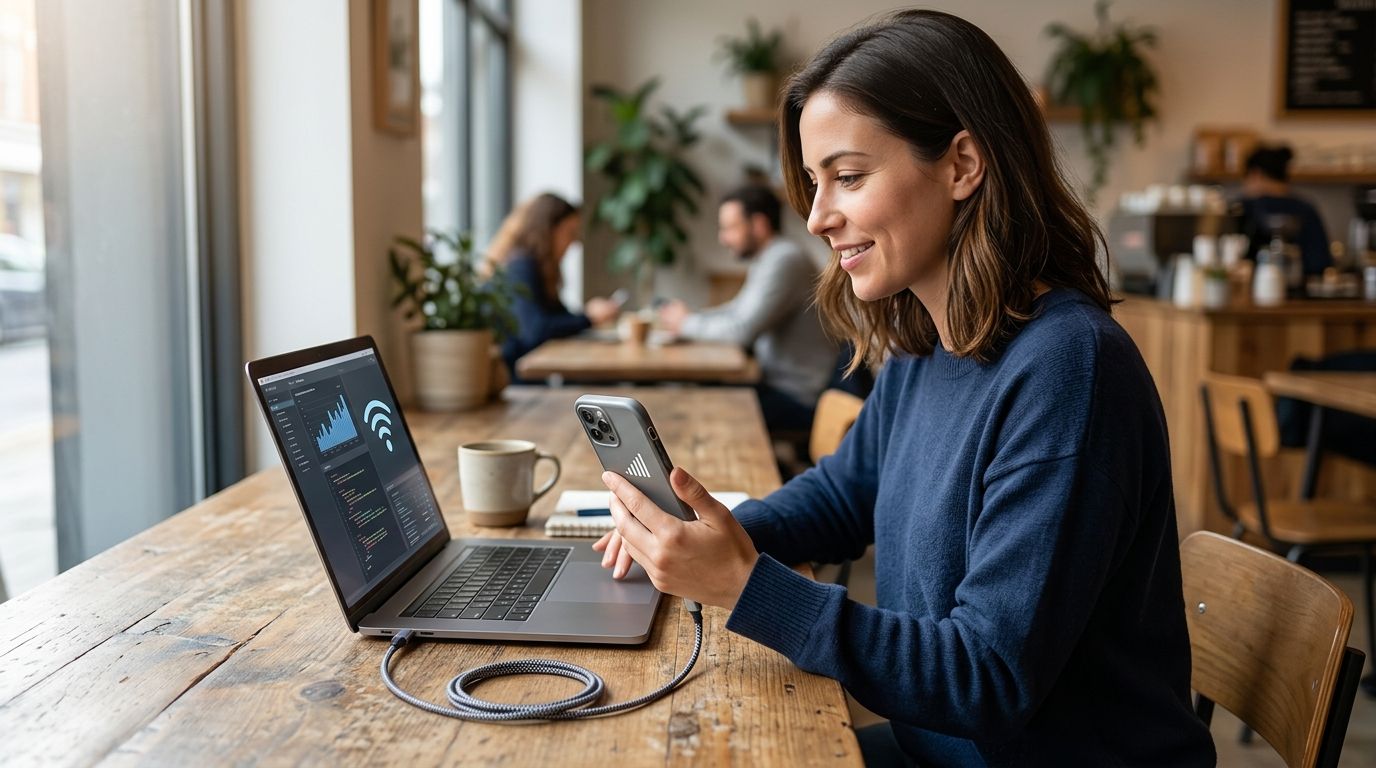
Yes, you can use an eSIM for personal hotspot tethering if your phone supports hotspot sharing and your eSIM plan permits it. The eSIM supplies the mobile data; your phone shares that connection with a laptop, tablet or another device. Check the plan’s hotspot terms before you depend on it during a trip in 2026.
- Yes: personal hotspot tethering works with an eSIM when the phone and plan both allow it.
- Choose the travel eSIM as your mobile-data line before turning on hotspot.
- A-sim travel eSIM users should check their selected plan’s hotspot terms before connecting a laptop.
- A connected laptop uses the eSIM’s data allowance, so monitor usage while tethering.
Can I use eSIM for personal hotspot tethering?
Yes, provided your device supports tethering and your plan allows it. Installing an eSIM alone does not switch on Personal Hotspot or establish that tethering is included. If you want a device-specific walkthrough, the guide to turning your phone into a hotspot for your laptop covers that setup.
- Check the plan. Find its hotspot or tethering terms. Do not assume that mobile data you can use on the phone can also be shared with another device.
- Select the eSIM for mobile data. On a dual-SIM phone, the line used for calls does not have to be the line used for data. Confirm which line is supplying the connection before you share it.
- Enable Personal Hotspot or mobile hotspot. Your phone creates a connection that your laptop or tablet can join. The setting’s name and location depend on the device.
- Connect your other device. Choose the phone’s hotspot from its Wi-Fi settings and enter the hotspot password. USB or Bluetooth tethering is another option when both devices support it.
- Monitor data on the selected line. Downloads, updates, cloud sync and video calls on the connected device all use the shared connection.
The order matters in 2026 just as it does at home: choose the correct mobile-data line before joining the hotspot from your laptop. Otherwise, a working connection does not tell you which plan is paying for the data.
Why this matters
A travel eSIM answers where your phone gets mobile data; tethering answers whether another device can use that connection. They are related decisions, not the same setting. In 2026, the safest pre-trip check is a plan that explicitly permits hotspot use, followed by a quick connection test on the phone you will carry.
This matters most when you expect to work from a laptop rather than browse on your phone. A laptop can run background downloads or cloud sync without an obvious prompt. If your travel plan has a data allowance, that activity uses it when the laptop is connected to the phone’s hotspot.
Does hotspot work differently on iPhone and Android?
The underlying requirement is the same on both: a permitted plan and a phone that supports sharing its mobile-data connection. The menus differ. Use the steps for your device, then verify the connection on the laptop or tablet rather than treating the visible hotspot switch as proof that data is flowing.
| Connection | Best for | Advantage | Limitation |
|---|---|---|---|
| Wi-Fi hotspot | Connecting a laptop or tablet without a cable | The other device can join through its Wi-Fi settings | The phone must keep its hotspot active, and connected devices use mobile data |
| USB tethering | Connecting a compatible computer with a cable | Does not require the computer to join a Wi-Fi hotspot | Requires a supported cable and device setup |
| Bluetooth tethering | Connecting compatible devices without Wi-Fi hotspot | Offers another sharing method if both devices support it | Pairing and device support add setup steps |
These methods share the selected mobile-data connection; they do not change the terms of the eSIM plan. If the plan does not permit tethering, switching from Wi-Fi to USB is not a substitute for permission.
On iPhone
Open Settings, then Cellular or Mobile Data, and check that the travel eSIM is selected for cellular data. Next, open Personal Hotspot and enable Allow Others to Join if that option is available. On your laptop or tablet, select the iPhone’s hotspot in Wi-Fi settings and enter the displayed password.
If you keep a home line active for calls or texts, check the data-line selection again before connecting another device. Where your iPhone offers automatic cellular-data switching, review that setting too: you need to know whether the phone can move data use to the other line. In 2026, a successful laptop connection still does not confirm which line the iPhone selected.
If Personal Hotspot is missing or will not turn on, check the phone’s carrier settings and the eSIM plan’s tethering terms. Do not keep resetting the eSIM as a first step; a plan restriction and a device setting need different fixes.
On Android
Open Settings and check the SIM or mobile-network controls for the line selected for mobile data. Then find Hotspot & tethering or Mobile Hotspot and Tethering and turn on the mobile hotspot. Android menu names vary by manufacturer, so use Settings search if the menu is elsewhere.
Join the hotspot from the second device using the password shown on the phone. If your Android phone has both a home SIM and a travel eSIM, verify the data SIM after connecting. You can keep one line available for calls while choosing the other for mobile data, subject to your phone’s dual-SIM settings.
The same test applies to a tablet, not just a laptop: open a page on the connected device with its own mobile connection or other Wi-Fi disconnected. If the page does not load, diagnose the phone’s mobile-data connection before changing hotspot settings.
Why does eSIM hotspot availability vary?
There is no universal hotspot entitlement attached to the word eSIM. These factors determine whether your particular setup works:
- Plan terms: The selected eSIM plan must permit hotspot or tethering use. Look for that condition in the plan details rather than relying on the phone’s hotspot switch.
- Phone support: The device must support both the eSIM and the sharing method you want to use. A compatible eSIM phone is not, by itself, proof of plan permission.
- Selected data line: A dual-SIM phone can have separate lines for calls and data. The hotspot shares the active mobile-data connection, so confirm that the travel eSIM is the data line.
- Mobile connection: A hotspot cannot pass mobile data to a laptop if the phone itself has no working mobile-data connection. Test a page on the phone first.
- Connected-device activity: Updates, file transfers and video calls on a laptop use data through the phone. Check usage against the selected plan while tethering.
- Device configuration: Hotspot visibility, password settings and Wi-Fi or USB support affect whether another device can join, even when the phone has mobile data.
A-sim sells travel eSIMs for single countries, regions and global travel; its app lets you manage usage and top up. A-sim suits travelers who want app-managed travel data, but the selected plan’s hotspot terms decide whether it can serve a laptop. Check those terms before treating any travel eSIM as your only work connection in 2026.
How can I tell whether the hotspot is using my travel eSIM?
Start with the phone’s mobile-data setting, not the laptop’s Wi-Fi icon. Select the travel eSIM as the data line, confirm mobile data works on the phone, and then connect the laptop to the hotspot. On a dual-SIM phone, review any automatic data-switching setting so you know whether the phone can use the other line.
Next, look at data usage for the selected line during a brief connection test. A-sim lets users manage usage through its app, which makes usage review a practical part of the test. Do not assume that a connected-device counter will identify the correct SIM for you; check the phone’s data-line setting directly.
If you are preparing for a trip in 2026, perform this check before you need to join a call or send a file. The test should answer two separate questions: can the laptop connect to the phone, and can it load a page through the intended eSIM? Passing only the first test means the hotspot is visible, not that the mobile-data route works.
What should I do if eSIM hotspot tethering is not working?
Test mobile data on the phone first. Turn off the phone’s Wi-Fi temporarily and try loading a page over the selected eSIM. If that fails, troubleshoot the eSIM connection or coverage before troubleshooting tethering. A hotspot cannot share a mobile connection the phone does not have.
If the phone has mobile data but the laptop cannot find the hotspot, confirm the hotspot is enabled and that the laptop’s Wi-Fi is on. Check the hotspot name and password on the phone, then reconnect. A previously saved password on the laptop can be the problem after the phone’s hotspot password changes.
If the laptop joins but has no internet access, confirm the travel eSIM is still the selected data line and recheck the plan’s hotspot rules. Disconnect and reconnect the laptop after correcting the phone’s settings. For a USB connection, check that the phone and computer support the chosen tethering method and that the cable is connected.
If the hotspot works but data runs out sooner than expected, inspect activity on the connected device. Pause downloads and cloud sync you do not need, and disconnect the device when the task is finished. A-sim users can manage usage and top up through the app; neither feature establishes that a particular plan permits hotspot sharing.
Does hotspot tethering use more eSIM data than browsing on my phone?
Hotspot tethering does not create a separate data allowance. The connected device uses the phone’s selected mobile-data connection, so its activity contributes to usage on that line. A laptop running downloads or video calls can use more data than a phone doing light browsing, depending on what you actually do.
For a 2026 trip, plan around the work you expect to perform rather than the number of devices you pack. Disconnect your laptop when you finish and check usage before starting another data-heavy task.
Can I keep my home SIM active while tethering from an eSIM?
Yes, if your phone supports the relevant dual-SIM setup. Select the travel eSIM for mobile data and check which line remains active for calls or texts. Review automatic data switching so you do not mistake a working hotspot for confirmation that it is using the travel line.
FAQ
Can I use eSIM for personal hotspot tethering on an iPhone?
Yes, if the iPhone supports Personal Hotspot and the selected eSIM plan allows tethering. Choose the eSIM for cellular data before enabling Allow Others to Join.
Can I share an eSIM connection with my laptop on Android?
Yes, if the Android phone supports mobile hotspot and the eSIM plan permits it. Select the eSIM for mobile data, enable the hotspot, then join it from the laptop.
Does having an eSIM automatically include hotspot access?
No. An eSIM supplies a mobile line, while hotspot permission depends on the selected plan. Check its tethering terms before relying on it.
Will my laptop use my eSIM data allowance?
Yes, when the phone shares the eSIM’s mobile-data connection. Downloads, cloud sync and calls on the laptop all contribute to usage on that connection.
Why does my laptop connect to my hotspot but have no internet?
A Wi-Fi hotspot connection does not prove the phone has working mobile data. Test mobile data on the phone, confirm the selected data line and check the plan’s hotspot terms.
Can I tether by USB instead of Wi-Fi?
Yes, when your phone and computer support USB tethering and the eSIM plan permits tethering. Changing the connection method does not override plan restrictions.
Can I use my home SIM for calls and a travel eSIM for hotspot data?
Yes, on a phone that supports that dual-SIM arrangement. Set the travel eSIM as the mobile-data line and review automatic data switching before tethering.
One last thing
A visible hotspot is not proof that your travel eSIM is supplying the data. Before you leave in 2026, connect a laptop, load a page and verify the phone’s selected data line. If you are considering an A-sim travel eSIM, confirm the chosen plan’s hotspot terms before making it your laptop connection.