Landing in another country and killing your home SIM's roaming means missing texts from your bank, your kid's school, or a client trying to reach you on the number they've always used. A dual-SIM esim setup fixes that in one sitting: keep your home number active on one line for calls and texts, and route data through an A-sim eSIM on the second line, so you never touch expensive roaming again.
- A dual sim esim setup keeps your home number live for calls and SMS while A-sim handles data abroad.
- iPhone XS and later, and most eSIM-capable Android phones from 2019 onward, support one physical SIM plus one eSIM active together.
- Set your home line as the default for calls and iMessage, and A-sim as the default for cellular data.
- Wi-Fi calling and iMessage over Wi-Fi cover the gap if your carrier throttles background data on the home line.
- Top up or swap A-sim plans through the app without touching your home carrier's settings.
Why this matters
Carriers charge daily roaming fees that add up fast on a two-week trip, and turning off your home SIM's data entirely means missing two-factor codes, banking alerts, or a call from your accountant. A dual-SIM esim setup splits the job: your physical or eSIM home line stays reachable for calls and texts, and an A-sim eSIM absorbs all the data traffic at local or regional rates. You get one phone, two working numbers, and no roaming bill shock when you land back home in 2026.
This matters more this year than it did a few years ago because most flagship phones now ship as eSIM-only in several markets, and airlines and border agents increasingly expect travelers to already have local data sorted before they clear customs. A dual-SIM setup isn't a workaround anymore, it's the default way frequent travelers run their phones.
Before you start
- Confirm your phone supports dual eSIM or eSIM plus physical SIM. iPhone XS and later (running iOS with eSIM support) and most Android phones released after 2019 — Pixel 4 and later, Galaxy S20 and later — handle one active eSIM alongside a physical SIM or a second eSIM.
- Keep your home SIM physically in the phone or its eSIM profile installed — don't remove it. The whole point of this setup is running both lines side by side, not replacing one with the other.
- The gotcha: some phones only let you have two eSIMs installed but just one active for cellular data at a time, meaning you toggle rather than run both simultaneously for data. Check your phone's dual-SIM support page before you land, not after, because switching mid-trip with no Wi-Fi is a bad time to discover the limitation.
Set up your home line as the primary voice number
- Open Settings (iPhone) or SIMs & networks (Android) and confirm your home carrier's SIM or eSIM is listed and active.
- On iPhone, go to Settings > Cellular and check the line labeled with your home carrier's name. Tap it and confirm Voice & SMS is toggled on.
- On Android, open Settings > Network & internet > SIMs, tap your home SIM, and set Calls and SMS to that line under the preference options.
- Leave Cellular Data on this SIM off for now — you'll assign that to A-sim in the next step. Expected result: your home number still rings and texts land normally, with no data flowing over it yet.
Install the A-sim eSIM as your travel data line
- Open the A-sim app or the a-sim.io site and pick the destination plan — global, regional, or a single country — for where you're headed.
- Complete the one-tap install: scan the QR code or tap Install eSIM directly from the app if you're already on your travel device.
- When prompted, label the new line something clear like "Travel Data" so you don't confuse it with your home SIM later.
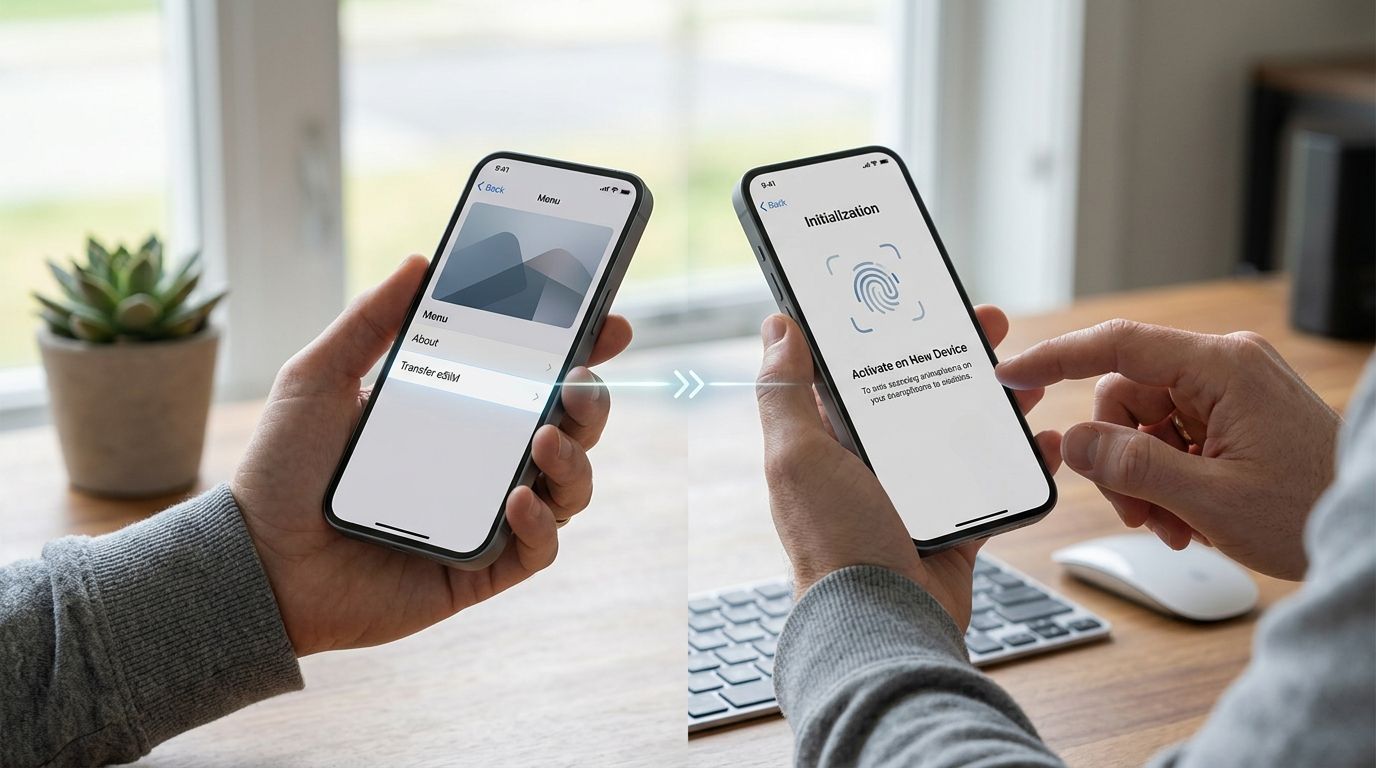
- Go back to Settings > Cellular (iPhone) or SIMs & networks (Android) and set Cellular Data to the A-sim line. Expected result: you now have two lines listed — home SIM for calls and texts, A-sim eSIM carrying all your data.
Configure data routing so nothing crosses lines
- On iPhone, under Settings > Cellular > Cellular Data, confirm A-sim is selected and toggle Allow Cellular Data Switching off if you want to lock data strictly to A-sim and avoid your home SIM racking up roaming charges by accident.
- On Android, open Settings > Network & internet > SIMs > Mobile data and set it to the A-sim eSIM explicitly.
- Turn on Data Roaming for the A-sim line only — this is a local plan behaving as your primary data source, not roaming in the traditional sense, but some phones still label it that way.
- Double-check your home SIM's Data Roaming toggle is off. Expected result: your data bill from your home carrier stays flat for the whole trip, and A-sim usage shows up in the app's usage tracker instead.
Variant: keep iMessage and FaceTime working without home-line data
If you'd rather not activate your home SIM's data at all, even for a trickle of background sync, run this instead: connect to Wi-Fi wherever you land and enable Wi-Fi Calling on your home line under Settings > Phone > Wi-Fi Calling. iMessage and FaceTime already route over Wi-Fi automatically when available, so texts and calls from your home number keep working the moment you're on any network — hotel, airport lounge, cafe — with zero cellular data spent on the home SIM. This variant suits travelers who want the home line strictly as a backup and A-sim as the only data source that ever touches cellular.
Troubleshooting
- iMessages aren't sending from your home number abroad. Check that Settings > Messages > Send & Receive still lists your home number, and that Wi-Fi Calling or A-sim data is active — iMessage needs some data path, even if it's not your home SIM's.
- Your home SIM shows unexpected data usage. Roaming likely got toggled back on automatically after a carrier update or phone restart. Recheck the Cellular Data assignment after any iOS or Android update.
- Calls drop when A-sim data is active. This usually means Allow Cellular Data Switching is on and the phone is trying to route voice over the data line. Turn that toggle off so voice stays locked to your home SIM.
- A-sim eSIM won't activate until you land. Most regional and country plans activate on first network connection, not at install, so this is expected — install before you fly, activate on arrival.
- Phone only shows one active SIM despite two installed. Some older or budget Android models support two installed eSIMs but only one active at a time for data or voice. Confirm dual-SIM specs for your exact model before assuming it's a setup error.
If you land at LAX and need a car sorted before your dual-SIM setup even matters, sorting connectivity first still pays off — plenty of travelers handle both in the same afternoon, the same way researching renting a Tesla near LAX ahead of arrival saves a scramble at the rental counter.
Customize your workflow
Once the basic dual-SIM esim setup is running, a few extras make it worth keeping year-round instead of just for one trip:
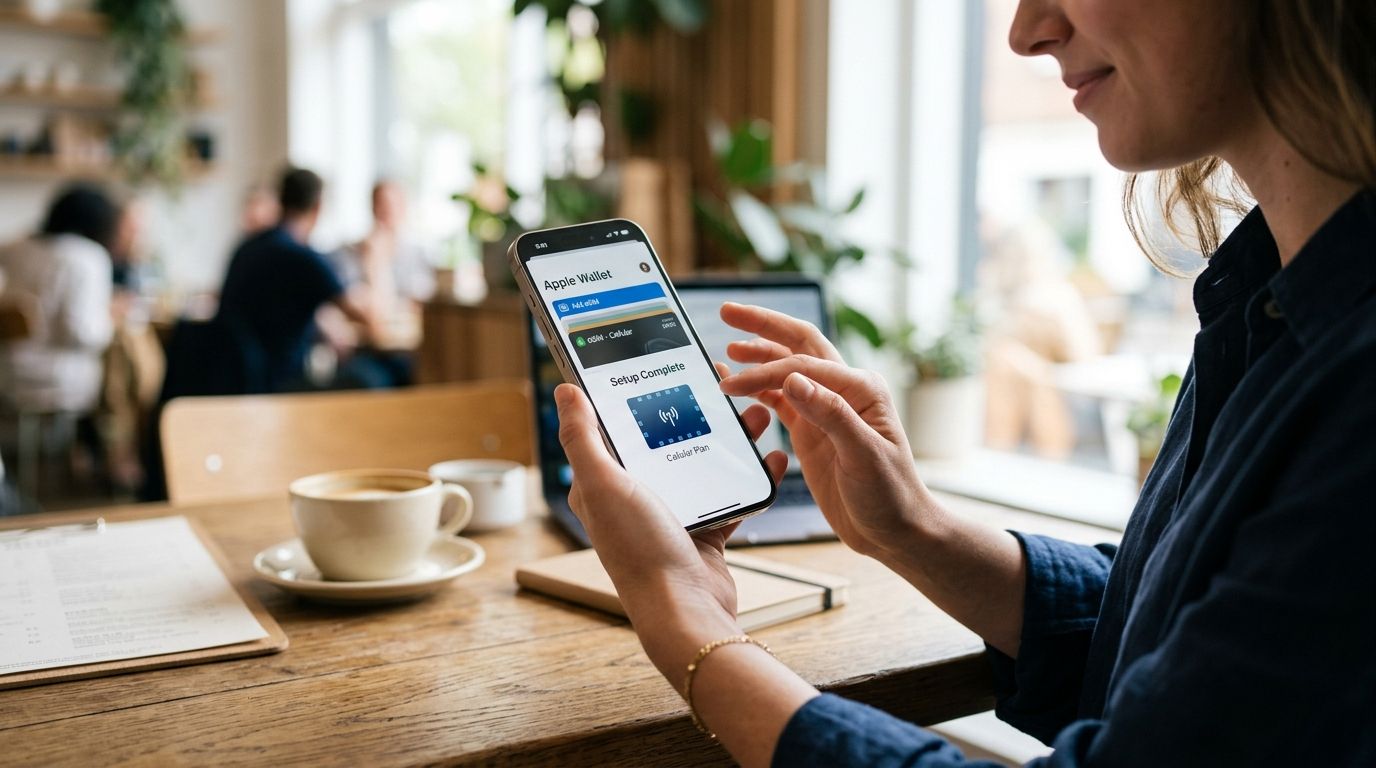
- Add your A-sim eSIM to Apple Wallet or Google Wallet so you can check remaining data without opening the app — see the step-by-step for adding your A-sim eSIM to Apple Wallet.
- If you're on Android, the install flow differs slightly from iPhone — the full walkthrough is in how to connect A-sim to your Android phone.
- iPhone users get a near-instant install path covered in connecting A-sim to your iPhone in one tap.
- Frequent travelers and remote workers running this setup on a rotating basis should look at plan structures built for repeat use, not single trips — the digital nomad eSIM guide breaks down which plans suit that pattern best.
Top up or switch destination plans through the A-sim app any time your itinerary changes — no need to touch your home carrier's settings again once this is configured.
FAQ
What is a dual sim esim setup?
A dual sim esim setup runs two lines on one phone: a physical or eSIM home line for calls and texts, and a second eSIM, like an A-sim travel plan, dedicated to data. It keeps your home number reachable while avoiding roaming charges on data.
Can I use two eSIMs at the same time?
Most phones from 2019 onward, including iPhone XS and later and Pixel or Galaxy models from the same era, support one active eSIM alongside a physical SIM. Some support two active eSIMs simultaneously, but check your exact model before assuming that's the case.
Will my home number still work if I install a travel eSIM?
Yes, your home number keeps working for calls and texts as long as you don't remove that SIM or eSIM profile. The travel eSIM only needs to handle data, so your home line stays assigned to voice and SMS.
How do I stop my home SIM from using data abroad?
Turn off Data Roaming on your home line under Settings > Cellular (iPhone) or Settings > Network & internet > SIMs (Android), and set Cellular Data to your A-sim eSIM instead. This keeps your home carrier's bill untouched.
Does iMessage work without my home SIM's data turned on?
Yes, iMessage and FaceTime route over Wi-Fi automatically when you're connected, so they keep working even with your home SIM's cellular data fully disabled. Enable Wi-Fi Calling too if you want regular calls and SMS over Wi-Fi as well.
Is a dual sim esim setup better than a local physical SIM?
A dual sim esim setup wins for anyone who needs to stay reachable on their home number, since swapping a physical SIM disconnects your home line entirely. An eSIM data plan installs alongside your existing SIM instead of replacing it.
Can I switch A-sim plans mid-trip if I change destinations?
Yes, you can install a new A-sim eSIM plan for a different country or region directly through the app without touching your home line's settings. The home SIM setup for calls and texts stays untouched the entire time.
One last thing
The setting most people forget isn't on the A-sim side at all — it's Allow Cellular Data Switching on iPhone. Leave it on and the phone will quietly flip data back to your home SIM the moment A-sim's signal dips, generating a roaming charge you won't notice until the bill lands back home. Turn it off once, right after you finish the setup, and it stays off for every future trip.