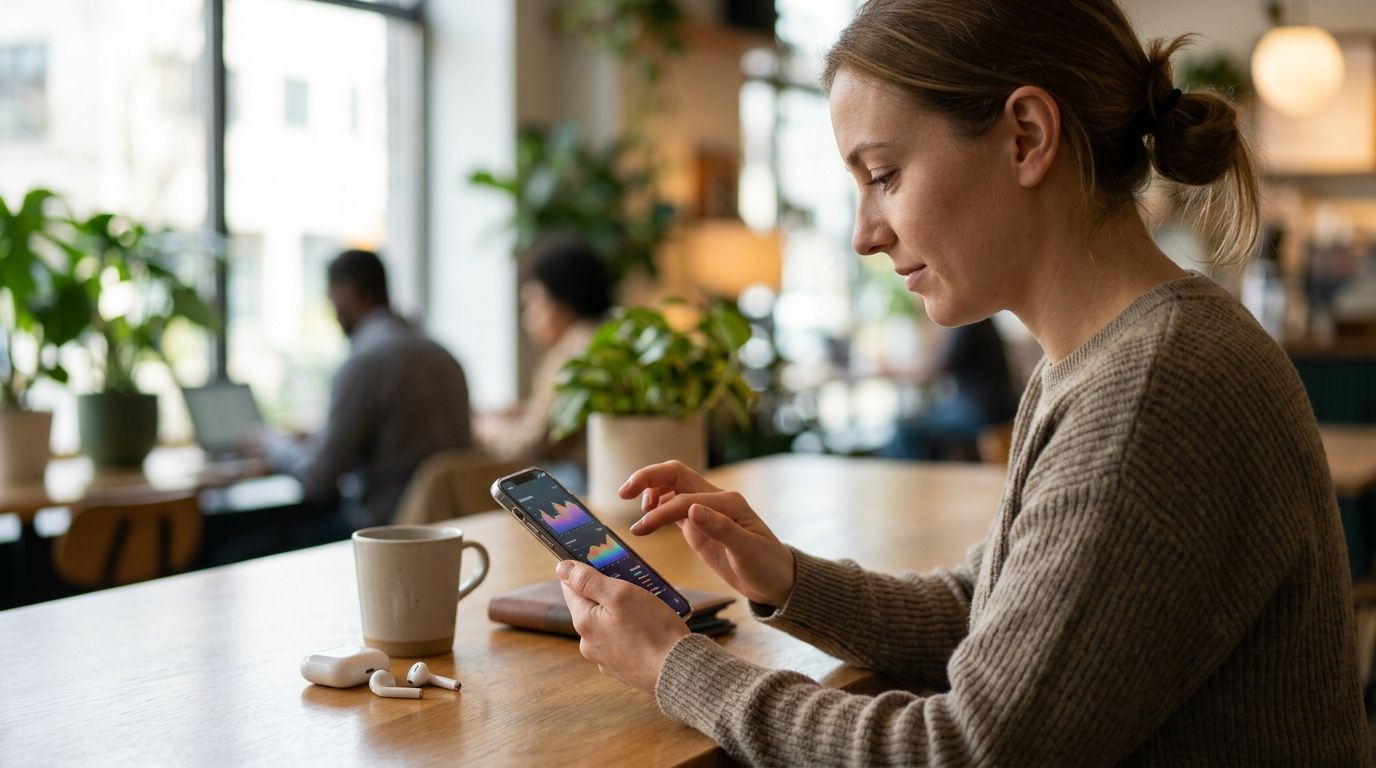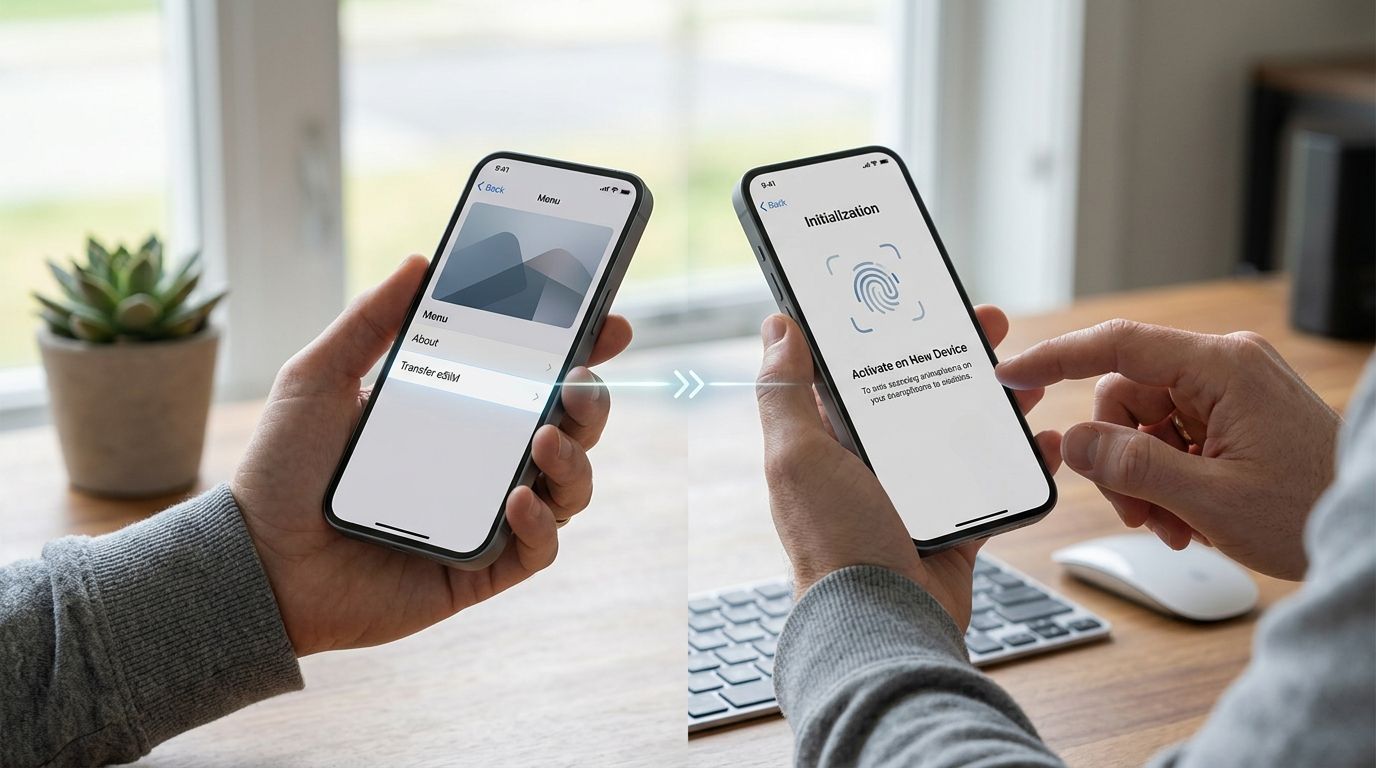
Instead of hunting for spotty airport Wi-Fi or paying a rental router deposit, turn the eSIM already sitting in your phone into the only internet connection your laptop needs. With A-sim installed and a data plan active, your phone becomes a personal hotspot in under two minutes, no cables required unless you want them.
- An esim mobile hotspot laptop setup takes under 2 minutes once A-sim is installed and active.
- iPhone and Android both support hotspot sharing natively — no extra app needed beyond A-sim for data.
- USB tethering is the fallback when Wi-Fi hotspot drains battery too fast on long work sessions.
- Video calls and cloud backups burn hotspot data fast — top up before you run a workday on it.
Why this matters
Hotel Wi-Fi is slow, coworking day passes cost money, and public Wi-Fi is a security risk for anyone opening work email or a banking app. A phone hotspot running on an A-sim eSIM mobile hotspot laptop setup skips all three problems: it's your own network, encrypted like any cellular connection, and available anywhere you have signal, not just where a router happens to sit.
The tradeoff is data. A hotspot connection pulls from the same data pool as your phone, and a laptop chews through it faster than a phone screen ever will — video calls, cloud syncs, and software updates all run heavier over a laptop's network stack. Plan the data size around that reality, not around what your phone alone would use.
Before you start
- An active A-sim eSIM with a data plan already installed on your phone — get one at a-sim.io before you land if you haven't already, since some destinations have weak signal in the first hour after arrival.
- A laptop with Wi-Fi or USB-C/USB-A enabled — both hotspot methods need one of these; check which ports your laptop has before you travel if you plan to tether by cable.
- The gotcha: hotspot mode does not create new data out of nowhere — it draws from the same balance your phone uses for maps and messages. A single laptop OS update or a two-hour video call can burn through more data in one sitting than a full day of normal phone use. Check your remaining balance in the A-sim app before you start a work session, not after.
Set up your iPhone hotspot
- Confirm your A-sim eSIM is the active data line. Open Settings, tap Cellular, and check that the A-sim eSIM is set to Cellular Data. If you're unsure how this was configured, the iPhone eSIM setup guide walks through the one-tap install.
- Go to Settings > Personal Hotspot and toggle it on.
- Note the Wi-Fi Password shown on this screen — you'll need it on the laptop side. Tap it once to edit if you want something easier to type.
- Leave the Personal Hotspot screen open or keep the phone unlocked the first time you connect — iPhone hotspot can sleep the connection if the screen locks before a device joins.
Expected result: the toggle turns green and a thin blue bar appears at the top of the phone screen showing how many devices are connected.
Connect your laptop to the iPhone hotspot
- On your laptop, open the Wi-Fi menu and look for your phone's name in the network list — it appears exactly as your iPhone's device name.
- Click it, enter the Wi-Fi Password from the hotspot screen, and select Connect.
- Confirm the connection by opening any webpage. If it loads, you're online.
Expected result: your laptop's Wi-Fi icon shows connected, and the iPhone's status bar confirms one device joined.
Set up your Android hotspot
- Confirm your A-sim eSIM is the default data SIM under Settings > Network & internet > SIMs. If you haven't installed it yet, the Android eSIM setup guide covers the install in a few taps.
- Go to Settings > Network & internet > Hotspot & tethering.
- Tap Wi-Fi hotspot and toggle it on. Tap into the settings to set or confirm the network name and password.
- Optional: cap the number of connected devices under Hotspot settings if you're sharing the connection with more than a laptop.
Expected result: the hotspot toggle turns on and a persistent notification appears confirming the hotspot is active.
Connect your laptop to the Android hotspot
- Open your laptop's Wi-Fi menu and select the network name you set on the phone.
- Enter the password and click Connect.
- Load a webpage to confirm the connection is live.
Expected result: your laptop shows connected, and the Android notification bar shows the device count ticking up by one.
USB tethering as a battery-saving alternative
Wi-Fi hotspot is convenient but drains phone battery fast, especially on longer work sessions where the phone is also charging your calls and notifications. USB tethering runs the same connection over a charging cable instead, so the phone charges while it shares data.
On iPhone, plug into the laptop with a Lightning or USB-C cable and select Trust This Computer if prompted — the connection appears automatically once trusted. On Android, plug in the cable, then go to Settings > Network & internet > Hotspot & tethering and toggle USB tethering on. Either way, the laptop shows the connection as a wired network rather than Wi-Fi, and battery drain drops noticeably compared to wireless hotspot mode.
Best for: long work sessions at a desk where the phone can stay plugged in anyway.
Get an eSIM before you land
Install A-sim in one tap and your hotspot is ready the moment you touch down.
Troubleshooting
- Laptop can't find the hotspot network. Move the phone closer — hotspot Wi-Fi range is shorter than a home router's, often under 10 meters through walls. Toggle hotspot off and back on if it doesn't appear after 30 seconds.
- Connected but no internet loads. Check the A-sim app for remaining data balance first; a depleted plan connects to Wi-Fi locally but has nothing left to route to the internet.
- iPhone hotspot drops when the screen locks. This is expected iPhone behavior on some models when no device has joined recently — keep the screen awake during the first connection, then it stays active in the background.
- Android hotspot won't allow another device to join. Check the device limit under Hotspot settings; some Android builds default to a low cap that needs manually raising.
- Data burns faster than expected. Laptops run background syncs (cloud backup, OS updates, browser tabs) that phones don't. Pause automatic updates and close unused tabs before a hotspot work session.
Customize your workflow
Once the hotspot habit is set, the next move is making sure the data plan matches how you actually work. Video calls and file uploads over a laptop hotspot use noticeably more data per hour than phone-only browsing, so a plan sized for casual travel often runs short mid-trip. Automatic top-up keeps the connection from cutting out mid-call by refreshing your balance before it hits zero, which matters more for laptop tethering than for any other use case.
If you're deciding how much data to buy in the first place, compare options by throughput rather than just price — a data-speed ranking of eSIM plans is the faster way to pick a plan that won't choke on a video call.
FAQ
Can I use an eSIM for a mobile hotspot on my laptop?
Yes. Any eSIM data plan, including A-sim, shares its connection through your phone's built-in hotspot feature exactly like a physical SIM would. No extra app or hardware is required beyond the eSIM itself.
Does hotspot mode use more data than normal phone use?
Yes, considerably more. Laptops run background updates, cloud syncs, and heavier browser sessions that pull more data per hour than typical phone use, so budget a larger plan or set up automatic top-up before a work trip.
Is USB tethering faster than Wi-Fi hotspot?
Speed is usually similar since both draw from the same cellular connection, but USB tethering avoids Wi-Fi interference and keeps the phone charging, making it the better choice for long desk sessions.
Why does my iPhone hotspot disconnect when the screen is off?
Some iPhone models pause the hotspot broadcast if no device has connected recently to save battery. Keep the screen on during the first connection and it typically stays stable afterward.
How many devices can connect to one phone hotspot?
Most phones support 5 to 10 connected devices depending on the model, though performance drops as more devices join since they all share one data connection.
Do I need a separate SIM for hotspot data?
No. The same eSIM data plan that powers your phone's internet also powers hotspot sharing — there's no separate plan or line needed.
Can I use an A-sim eSIM hotspot in multiple countries?
That depends on the specific plan's coverage — regional and single-country A-sim plans work only within their listed countries, while global plans cover more destinations. Check the plan details before travel.
One last thing
The single biggest mistake travelers make with an esim mobile hotspot laptop setup isn't the connection, it's the data math: a two-hour video call over hotspot can use more data than three full days of normal phone browsing. Check your A-sim balance before, not during, a work call — automatic top-up closes that gap so the call never drops mid-sentence.