Yes, you can use an eSIM without removing your physical SIM if your phone supports that combination of active SIMs. Keep your physical SIM for your home number and select the eSIM for mobile data; leaving your home line enabled abroad does not prevent roaming charges for calls, texts or unintended data use.
- Can I use eSIM without removing my physical SIM? Yes, on a phone supporting physical SIM plus eSIM.
- Choose the travel eSIM for mobile data; keep your physical SIM enabled only when you need your home line.
- Turning off home-line data roaming does not block roaming calls or texts.
- A-sim travel eSIMs suit travellers who want app-based usage tracking and top-ups.
Can I use eSIM without removing my physical SIM?
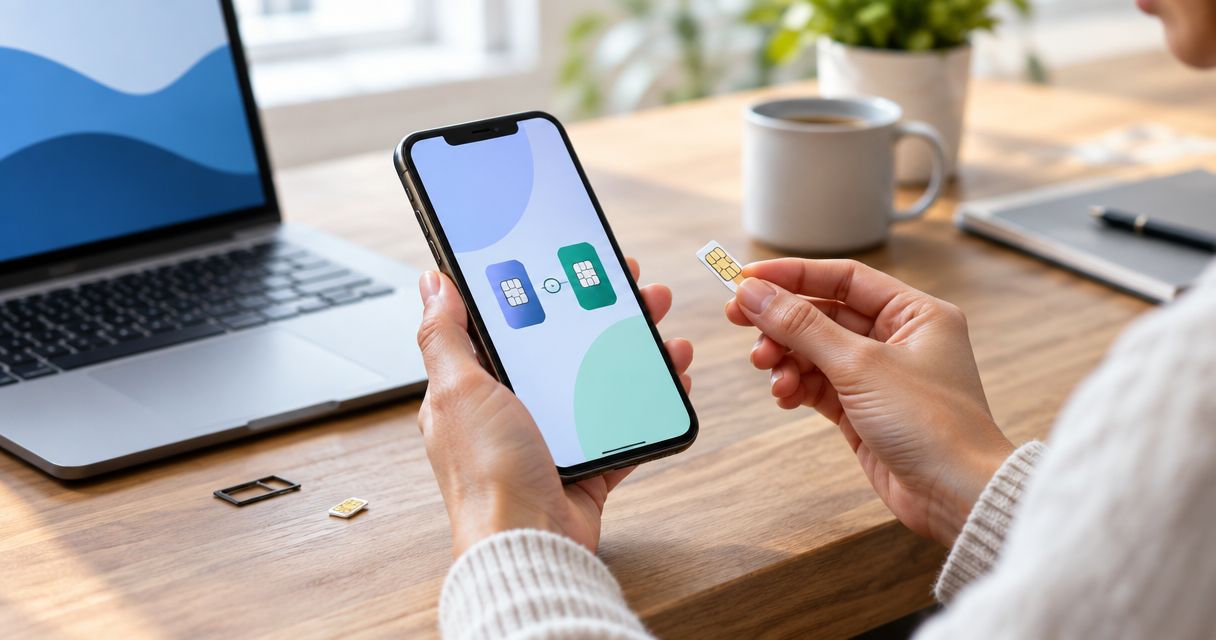
You do not need to eject your physical SIM to add a separate travel eSIM. On a compatible dual-SIM phone, the physical card and downloaded eSIM profile are separate lines. You choose which line handles mobile data and which line handles supported calls and messages.
The distinction is between adding a line and replacing one. Adding a travel eSIM leaves your existing subscription in place. Converting your home subscription from a physical SIM to an eSIM is a different process: your carrier normally deactivates the old physical card when the replacement takes over.
For a typical supported setup, you have 2 active SIM lines, but select 1 mobile-data line at a time. That does not mean both lines can handle every task simultaneously. Call behaviour depends on the phone, carrier and settings.
| Setup | Best for | Main benefit | Main limitation |
|---|---|---|---|
| Physical SIM enabled, travel eSIM selected for data | Keeping your home number reachable | Home-line calls and texts remain possible where supported | Home-line roaming still needs attention |
| Physical SIM disabled, travel eSIM selected for data | Using travel data without home-line cellular activity | No cellular use through the disabled home line | Ordinary calls and SMS to your home number are unavailable through that line |
| Physical SIM removed, travel eSIM selected for data | Physically separating the home SIM from the phone | The home card cannot connect from that phone | You must store the card and reinsert it later |
The guide to keeping your home number active with dual SIM covers the first arrangement. For your 2026 trip, choose the arrangement based on whether you need home-number access, not on whether the SIM tray is occupied.
Why this matters
A phone can show both lines as enabled while using only the travel eSIM for internet access. That is useful for maps, bookings and messaging apps, but it is not proof that your home carrier cannot bill you for other activity.
SIM presence, line status and data selection are different controls. A physical card can stay inside the phone with its line switched off. An enabled home line can receive network service even when another line supplies mobile data.
Before departure in 2026, decide whether receiving ordinary calls and SMS matters more than disconnecting your home line. That decision determines the settings you need. Removing the card is usually unnecessary on a compatible phone.
Keep both lines enabled for home-number access
Best for: travellers who need their existing number for supported calls or SMS. Leave the physical SIM enabled, select the travel eSIM for mobile data, and disable data roaming on the home line.
The benefit is separation: your home subscription retains its number while the travel line supplies internet access. The limitation is that home-line calls and messages remain subject to your carrier's international service and billing rules.
Receiving a verification text also depends on the sender and your home carrier's service abroad. A travel data connection does not deliver ordinary SMS addressed to a different subscription.
Do not use a successful app message as a test of home-number reachability. WhatsApp or another internet-based service can work over travel data even when the physical SIM has no cellular service. Test the function you actually need.
Disable the physical SIM for travel-data-only use
Best for: travellers who do not need ordinary home-line calls or SMS during the trip. Turn off the home line in SIM settings and leave the physical card in its tray.
This avoids having to handle a small card while travelling. It also separates the home line from cellular activity on that phone. The trade-off is straightforward: a disabled line cannot receive ordinary cellular calls or SMS.
Internet-based messaging can still work through the travel eSIM. Keep account access and recovery in mind, though. If a service requires a new SMS verification code, you need access to the number receiving that code.
Disabling a line does not cancel its subscription. Your carrier account continues under its existing terms, and you can re-enable the line from the phone's settings when needed.
Remove the physical SIM only when it serves a purpose
Best for: travellers who specifically want the home card out of the device. Removal is an option, not a requirement for adding a travel eSIM to a compatible phone.
Its benefit is physical separation. Its drawback is practical: you must keep the card safe and put it back when you want to use that subscription again. Turning the line off achieves the immediate goal of preventing that line from connecting on the phone without opening the tray.
Removing a physical SIM does not add eSIM support to an incompatible device. It also does not unlock a carrier-locked phone. Solve compatibility or carrier restrictions before changing the hardware arrangement.
How to set up a physical SIM and travel eSIM
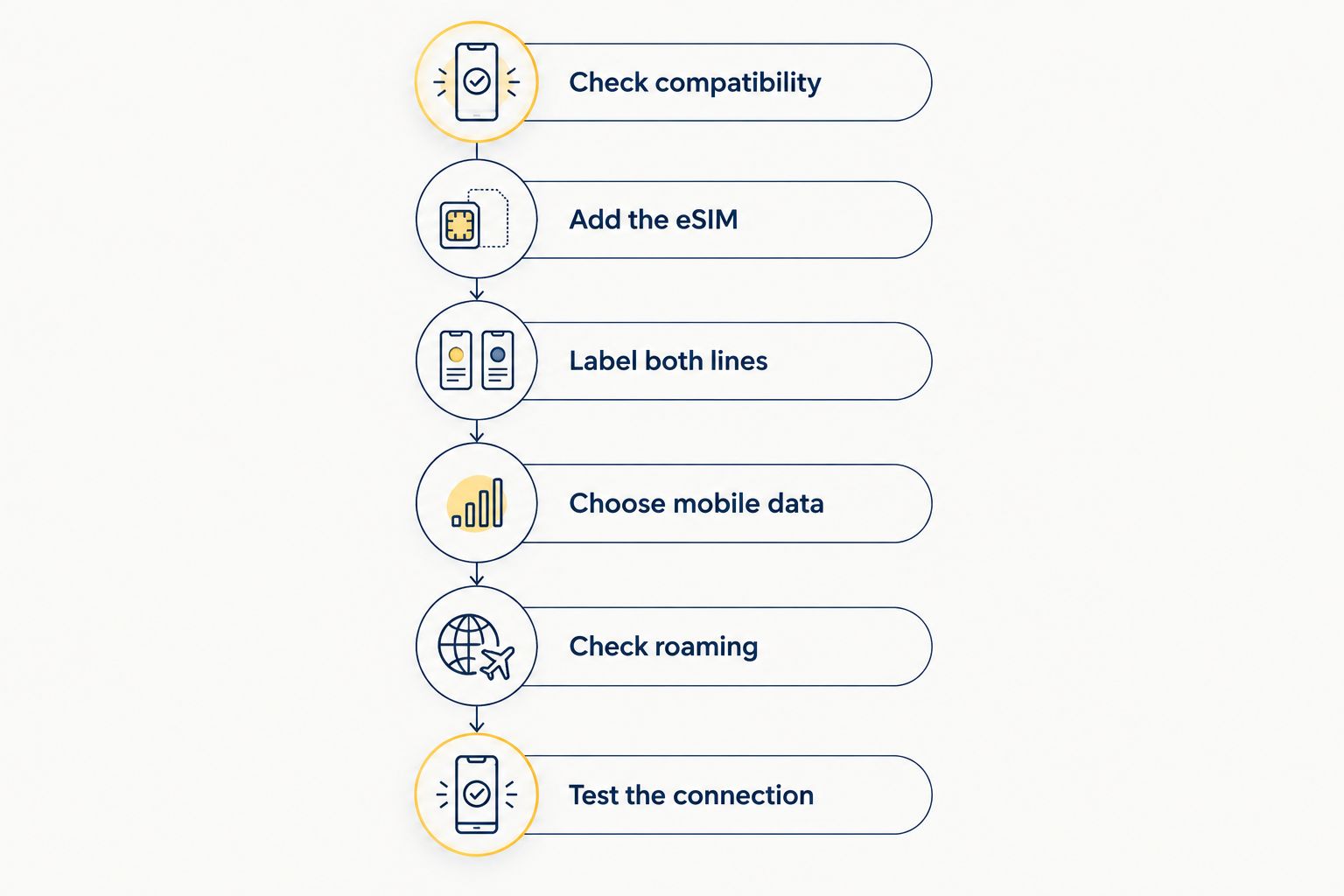
Use this sequence for your 2026 setup. Menu names vary across iPhone and Android models, so follow the function rather than expecting identical wording.
- Check compatibility. Confirm that your exact model and regional version support an active physical SIM alongside an eSIM. If the travel eSIM uses another provider, check whether the phone is unlocked.
- Add the eSIM. Follow the provider's installation instructions while you have an internet connection. Add a separate travel line rather than choosing an option to convert or transfer your home subscription.
- Label both lines. Give each line a recognisable label, such as Home and Travel. This makes the next settings easier to verify.
- Choose mobile data. Select Travel as the mobile-data line. Turn off automatic data switching if you do not want the phone to fall back to your home subscription.
- Check roaming. Disable home-line data roaming. Follow the travel eSIM provider's instructions for its roaming setting; some travel eSIMs require it enabled.
- Test the connection. Once you are in the covered destination and the plan is active, turn Wi-Fi off temporarily and load a webpage. Check which line is selected for data.
The order matters. Installing an eSIM does not automatically make it the data line, and choosing it for data does not automatically disable your physical SIM.
On an iPhone
Open Settings and look for Cellular or Mobile Service. Check that both subscriptions appear, select the travel line under Cellular Data, and review Allow Cellular Data Switching. Open the home line separately to review its Data Roaming setting.
Choose your default voice line separately from your data line. Selecting the travel eSIM for internet access does not automatically change the number used for an ordinary outgoing call.
For an iPhone compatibility check in 2026, use Apple's specifications for the exact model and sales region. A model name alone is not enough to assume that every regional version has the same SIM arrangement.
On an Android phone
Open the mobile-network or SIM settings. Depending on the manufacturer, the controls appear under names such as SIM Manager, SIMs or Network & Internet. Find the preferred SIM controls and select the travel eSIM for mobile data.
Review any automatic data-switching or backup-data setting. Check the home subscription's roaming controls separately where available; if the interface does not make the affected line clear, consult the manufacturer's instructions before changing it.
Android menus differ between devices. The goal stays the same: identify both lines, choose the travel data line, and decide whether the home line should remain enabled.
Why the answer varies by phone and plan
The SIM tray is not the deciding factor. These checks determine whether your intended setup works:
- Exact device version: eSIM support and physical-SIM support vary by model and sales region.
- Supported active combination: storing eSIM profiles does not prove the phone supports your chosen lines simultaneously.
- Carrier lock: a locked phone restricts which providers you can use, even if the device supports eSIM.
- Travel-plan services: data access does not establish that a plan includes a telephone number, ordinary calls or SMS.
- Home-carrier service: international coverage, SMS delivery and Wi-Fi Calling depend on carrier support and account settings.
- Data-routing settings: automatic switching can change which subscription supplies internet access.
Check the device first, the plan second, and the settings third. A successful eSIM download proves that a profile was installed; it does not prove that every intended service is working.
Can I keep my phone number when I add an eSIM?
Yes, adding a separate travel eSIM does not replace the number on your physical SIM. Your home number remains attached to your home subscription unless you transfer, convert or cancel that service.
Keeping the number and receiving service are different things. The home line must be enabled and have supported service to receive ordinary cellular calls or SMS abroad. Your travel eSIM's data connection does not guarantee that reachability.
Can I use both SIMs for mobile data at once?
A typical dual-SIM setup selects 1 mobile-data line at a time. Both subscriptions can be enabled, but the phone normally routes mobile internet through the selected data subscription rather than combining both allowances.
Automatic switching is a fallback feature, not a reason to assume your home data is protected. Turn it off when your priority is keeping internet traffic on the travel line.
Will keeping my physical SIM cause roaming charges?
Keeping the card inside the phone does not itself create roaming usage. Activity through an enabled home line is what matters, including supported calls, messages and any data routed through it.
Disabling home-line data roaming addresses data, not every service. For a 2026 departure, review your home carrier's rules before leaving the line enabled; turn the home line off if you do not need its cellular services.
Where A-sim fits this setup
A-sim travel eSIMs suit travellers who want to manage data usage and top-ups in an app. You can get travel eSIMs through the A-sim website or app, with global, regional and single-country options.
That app-based management is the practical benefit. The limit is separate from the app: your phone must support the intended SIM combination, and you still need to choose the correct data line. Do not treat a travel eSIM as proof that home-number calls or SMS are included.
Match the destination coverage to your itinerary. Then follow the installation instructions and review both subscriptions before relying on the connection.
FAQ
Can I use an eSIM without taking out my physical SIM?
Yes, if your phone supports an active physical SIM alongside an eSIM. Add the travel eSIM as a separate line and select it for mobile data.
Does installing an eSIM deactivate my physical SIM?
Adding a separate travel eSIM does not normally deactivate your physical SIM. Converting your existing subscription to an eSIM is different and normally deactivates the card it replaces.
Can I receive bank verification texts while using travel eSIM data?
You can receive texts to your home number when that line is enabled and has supported service abroad. Delivery also depends on your carrier and the sender; travel data alone does not deliver SMS addressed to your home subscription.
Should I turn off my physical SIM while travelling?
Turn off your physical-SIM line if you do not need its ordinary calls or SMS. Leave it enabled only after checking your home carrier's international service rules and reviewing data settings.
Do I need data roaming on for my travel eSIM?
Follow your travel eSIM provider's instructions because some travel eSIMs require data roaming enabled. Keep the home line's data roaming disabled when you do not want to use home-carrier roaming data.
Will WhatsApp still work if I disable my physical SIM?
An already registered WhatsApp account can use internet access from a travel eSIM without the physical-SIM line being enabled. New registration or account recovery can still require access to your registered number.
Can I use A-sim while leaving my home SIM in my phone?
You can use an A-sim travel eSIM alongside your home card if your exact phone supports that active combination and permits the provider. Check compatibility, then select the travel line for mobile data.
Why does my eSIM show no service even though it is installed?
An installed profile still needs an active plan, supported destination coverage and the correct settings. Check that the travel line is enabled, follow its roaming instructions and confirm that mobile data is assigned to it.
One last thing
Switching a line off is not the same as deleting it. If you want to stop using a travel eSIM after your trip, disable the line first and check the provider's instructions before removing its profile. Reinstallation rules differ.
When you return, select your home subscription for mobile data again. Leaving the physical SIM in place makes that switch simple, but the phone still needs the correct line selected.