
Conference and trade show attendees’ eSIM connectivity is mobile data delivered through a digital SIM, with the aim of keeping schedules, messages and follow-ups accessible abroad. This 2026 guide explains how to choose an eSIM for conference travel, prepare your phone and handle laptop access without treating venue Wi-Fi as your only connection.
- A-sim suits conference travellers who want travel eSIM data, in-app usage tracking and top-ups.
- Choose an eSIM for conference travel by destination coverage, validity and the work you need to complete.
- Check phone compatibility, carrier restrictions and hotspot terms before buying.
- Keep offline event details and a backup connection; an eSIM does not guarantee reception inside an exhibition hall.
Why travel eSIM connectivity matters for conference attendees
A conference itinerary creates several distinct connectivity needs: finding the venue, accessing your registration, coordinating meetings and sending follow-ups. A connection that works at your hotel does not establish that it works at your booth. You need to check the places where you will actually use it.
Venue Wi-Fi and mobile data are separate access routes, but neither guarantees uninterrupted service. Building construction, local network coverage and network demand affect the connection you experience. Choose a fallback for essential tasks rather than assuming a second connection solves every problem.
For your 2026 event plan, separate phone essentials from laptop work. Messaging and maps belong on your phone checklist; demonstrations, file transfers and remote meetings need their own connection checks. An attendee reviewing an agenda has different requirements from an exhibitor running a live demonstration.
A-sim is best for conference travellers who want travel eSIM data with in-app usage management and top-ups. Its single-country, regional and global options let you match the scope of your connection to your itinerary. Those features do not establish reception at a particular venue or replace checking the selected plan’s terms.
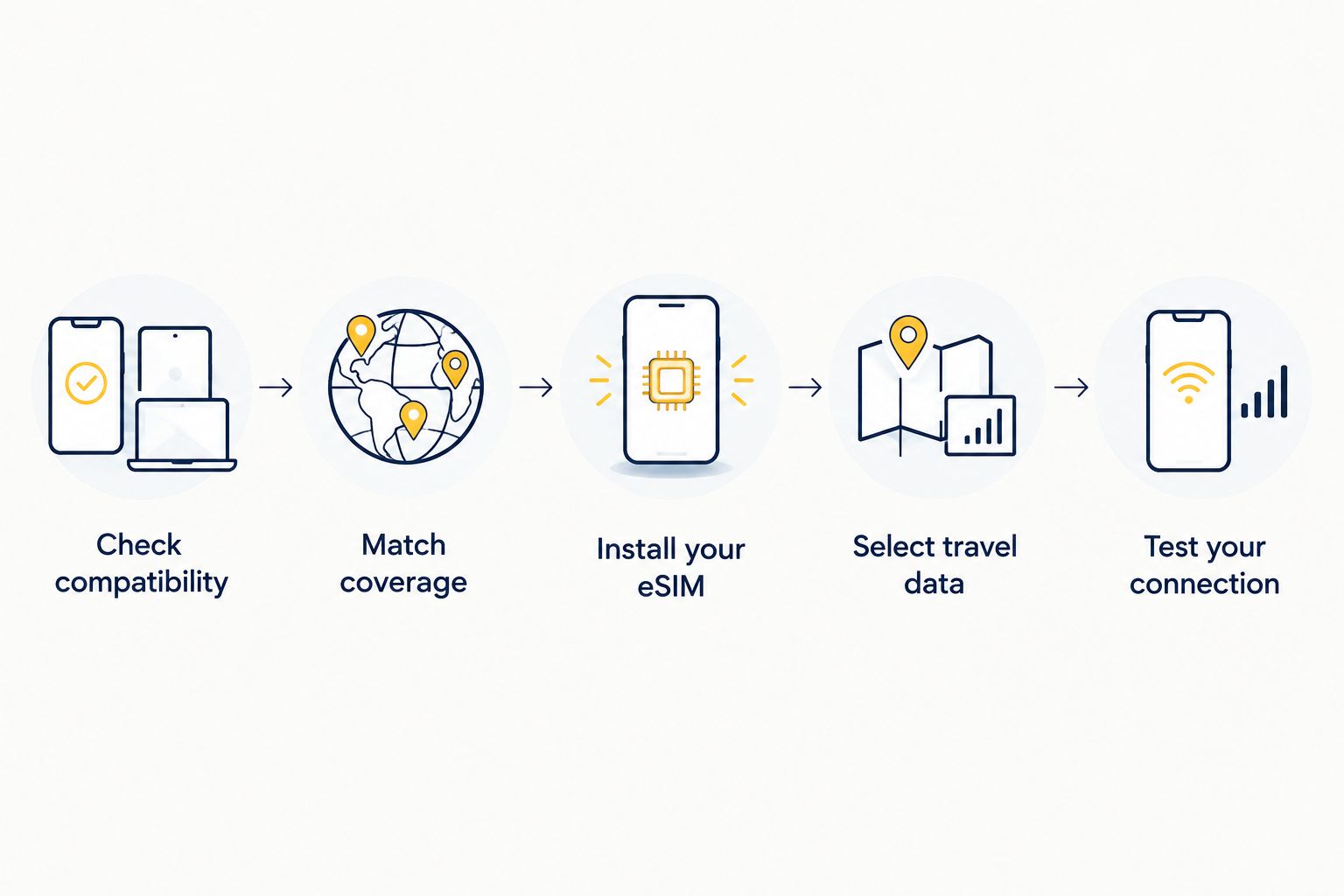
How to prepare your conference travel connection
Check compatibility
Start in your phone’s settings and the manufacturer’s documentation. Confirm that your exact model supports eSIM, then check whether carrier restrictions prevent you from adding another provider. A familiar model name is not enough: device variants and carrier restrictions matter.
If you travel with a work-issued phone, ask your IT team whether adding a travel eSIM is permitted. Check corporate access requirements at the same time. A working mobile connection does not automatically mean your company allows it for every application.
Do this before buying. Discovering a device restriction during registration leaves you solving a phone problem when you need to be meeting people.
- Confirm eSIM support for your exact device variant.
- Check whether your phone is carrier-unlocked.
- Confirm permission to add a line on a managed device.
- Check how your phone handles multiple active SIMs.
- Keep your device passcode and account recovery method accessible.
Match coverage
Write down the countries where you need connectivity, including transit stops where you plan to leave the airport. Match that list against the destination coverage of the specific plan. A regional label does not replace checking the included countries.
For a 2026 conference trip with meetings on either side of the event, plan around the whole itinerary rather than just the exhibition dates. Check when validity begins and when it ends. Installation, activation and the start of validity are separate concepts whose relationship depends on the plan.
Single-country coverage fits an itinerary contained within that country. Regional or global coverage deserves consideration when your route crosses borders, but the broader label alone does not establish that every stop is included.
- List the event country and any additional work destinations.
- Include arrival and departure days in your coverage check.
- Verify each relevant country in the plan details.
- Read the validity-start rule before installation.
- Check hotspot and usage restrictions against your work requirements.
Estimate your workload
Use your phone’s existing cellular usage records as a starting point. Review which apps consume data, then identify what changes during the event. A trip involving laptop demonstrations needs a different allowance from one centred on messaging and agenda checks.
Do not convert a generic daily estimate into a promise. Video quality, file sizes, background synchronisation and hotspot activity change consumption. Download presentation assets and reference documents before departure so they do not compete with essential tasks during the event.
A-sim lets you manage usage and top up through its app. That gives you a way to review consumption during the trip; it does not remove the need to inspect your selected plan’s conditions or control background transfers.
- Review cellular usage by app on your phone.
- Separate messaging, maps, video and laptop tasks.
- Download presentation files and venue information beforehand.
- Restrict automatic cloud uploads and software updates on mobile data.
- Set a reminder to review remaining data during the event.
Install your eSIM
Follow your provider’s installation instructions while you have a dependable internet connection. Read the validity-start rule first, especially if you are preparing well before departure. Label your lines clearly so you can distinguish home service from travel data later.
For your 2026 preparation checklist, use 3 checkpoints: before departure, after arrival and inside the venue. Confirm installation before you leave, establish data access after arrival, then test the tasks you need at the event. These are separate checks, not a single activation test.
A-sim offers travel eSIM access through its website or app for compatible iPhone and Android devices. Use the instructions for your device rather than copying another attendee’s settings; menus and supported SIM combinations differ.
- Read the installation and activation instructions together.
- Confirm what starts the plan’s validity period.
- Label the travel line so it is easy to identify.
- Keep setup instructions accessible outside your email inbox.
- Avoid deleting the eSIM as a first troubleshooting step.
Select travel data
Open your phone’s SIM or cellular settings and select the intended line for mobile data. Decide separately which line handles calls and messages. On supported devices, keeping your home number active and using travel data are different settings, not an automatic package.
Check the provider’s instructions for data roaming on the travel line. Some travel eSIM arrangements require it, so switching roaming off indiscriminately can prevent the intended connection. Your home line needs its own review against your carrier’s roaming terms.
Do not assume that a travel data plan includes a new telephone number, ordinary voice calls or SMS. Internet messaging and carrier messaging are different services. Verify your authentication method before you rely on receiving a work login code abroad.
- Select the travel eSIM as the mobile-data line.
- Follow its specific data-roaming instructions.
- Review automatic data-switching settings where supported.
- Check home-line calling, messaging and roaming terms separately.
- Prepare an approved alternative to SMS authentication where possible.
Test your connection
Test useful actions, not just the signal icon. Open your event registration, send a message and load the map route you will need. If you depend on a corporate application, confirm that it works with the connection and any required security software.
For laptop work, first confirm that tethering is allowed by the plan and supported by your device. Connect 1 laptop for the initial test so you can distinguish a connection problem from traffic generated by several devices. Try the actual demonstration or meeting application, not an unrelated web page.
Repeat the essential checks inside the venue. For remote meetings, review using eSIM data for video calls on a slow connection and prepare an audio-first fallback rather than making video your only format.
- Load your registration and agenda on mobile data.
- Send a message through your chosen work app.
- Test approved corporate access and authentication.
- Test laptop tethering only after checking plan permissions.
- Check the connection where your meeting or demonstration will happen.
Protect essential tasks
Build a fallback around what would interrupt your day. Save the venue address, registration details, meeting schedule and presentation locally. An offline copy gives you access even when neither mobile data nor Wi-Fi is usable.
Where practical, keep 2 independent connections available: your travel mobile connection and an approved venue or hotel connection. Independence here means different access routes, not a guarantee against every shared outage. Keep security requirements unchanged when switching between them.
Review consumption after hotspot sessions and before leaving for evening meetings. A-sim supports in-app usage management and top-ups, so make that check part of your event routine. Do not wait for a failed upload to discover that you need to review your allowance.
- Save essential event details for offline access.
- Keep a local copy of demonstration and presentation files.
- Identify an approved alternative connection before important meetings.
- Disable hotspot access when you finish using it.
- Review remaining data after substantial laptop activity.
- Keep a charging plan for the phone providing your connection.
Compare connectivity options for conference travel
Choose your primary connection by the work it must support, then choose a fallback that addresses its limitation. For a 2026 event, neither a digital SIM nor a familiar home carrier name establishes indoor reception or application performance. Test the service you intend to use.
| Option | Best for | Main advantage | Key limitation |
|---|---|---|---|
| A-sim travel eSIM | Attendees wanting destination-based travel data and in-app management | Single-country, regional and global options, with usage management and top-ups through the app | Requires a compatible device; check selected-plan coverage, validity and hotspot terms |
| Home-carrier roaming | Attendees wanting to keep their existing carrier arrangement | Uses your existing carrier service when international roaming is supported | Destination rules and usage terms depend on your carrier |
| Venue Wi-Fi | Attendees whose tasks work on the event’s provided network | Connects supported devices without adding a mobile line | Access conditions, reception and performance depend on the venue network |
| Local physical SIM | Attendees with a compatible physical-SIM phone | Provides another route to local mobile service | Requires a physical SIM slot and review of local registration and plan requirements |
| Travel Wi-Fi router | Attendees connecting several devices through a separate hotspot | Keeps the hotspot function on a separate device | Adds equipment to charge and carry; mobile coverage still matters |
Use a travel eSIM for portable phone data, not as a substitute for checking your event’s technical requirements. For a booth with business-critical demonstrations, ask the organiser about exhibitor connectivity and prepare a local demonstration. Personal hotspot access alone does not establish that your setup meets the organiser’s rules.
Common mistakes conference attendees make
Buying for the conference dates alone
Your connectivity needs start before registration and continue after the closing session. Airport transfers, hotel check-in and follow-up meetings belong in the itinerary. Check coverage and validity across the whole trip, including any extra country where you need service.
Treating installation as proof of connectivity
An installed eSIM profile does not prove that you can send a message from the exhibition floor. Separate installation from arrival testing and venue testing. Keep enough time to troubleshoot before a scheduled call or demonstration.
Assuming travel data preserves every phone service
Mobile data, your home number and SMS verification are separate concerns. Check which services your travel plan provides and which remain on your home line. Test the authentication route you need before leaving home.
Running a live booth demonstration without a fallback
A demonstration that depends entirely on a live connection creates an avoidable point of failure. Prepare a local presentation, approved sample environment or recorded walkthrough. If live access is essential, arrange appropriate event connectivity and test it at the booth.
Leaving laptop traffic uncontrolled
A hotspot can carry software updates, cloud backups and background downloads alongside the task you intended. Pause unnecessary transfers and monitor usage after tethering. Keep sensitive work within your employer’s approved access and security rules.
FAQ
What's the best eSIM for conference travel?
The best eSIM for conference travel matches your destinations, compatible device and event workload. A-sim suits attendees who want single-country, regional or global travel eSIM options with in-app usage management and top-ups; check the selected plan’s terms before choosing.
Can I use a travel eSIM instead of conference Wi-Fi?
You can use a travel eSIM for mobile data when your device, plan and local coverage support it. It provides a separate access route from venue Wi-Fi, but does not guarantee reception or performance inside the conference venue.
Should I install my eSIM before flying to a conference?
Install before departure if the provider’s instructions and validity-start rule support that timing. Prepare on a dependable internet connection, then test mobile data after arrival and again inside the venue.
Can I connect my laptop through my conference travel eSIM?
You can tether your laptop when your phone supports hotspot use and the selected plan permits it. Test your work applications and control background downloads before relying on the connection for a meeting or demonstration.
Can I keep my home number while using travel eSIM data?
You can keep your home line active alongside travel data when your device and carrier arrangement support that setup. Select the intended data line and review home-carrier roaming terms separately; travel data does not automatically include SMS or ordinary calls.
How much data do I need for a trade show?
Choose your data allowance from your actual tasks and existing usage records, not the event’s duration alone. Laptop tethering, video meetings and file uploads need separate consideration from maps, messaging and agenda access.
Is a regional eSIM better for conferences in several countries?
A regional eSIM fits a multi-country itinerary when its included destinations and validity match your trip. Check every country and relevant plan restriction rather than assuming the regional label covers the whole route.
One last thing
Before your 2026 event, rehearse the first task you will need after landing: open your hotel address, contact your colleague or retrieve your registration without Wi-Fi. That small test exposes the difference between having an eSIM installed and having a usable travel setup. Save the same information offline so your first meeting does not depend on your first connection.