To check eSIM data remaining, open your provider’s app or account, select the plan you’re using, and look for its balance or usage details. Use your iPhone or Android settings to see which apps consumed mobile data, but do not treat the phone’s usage counter as your remaining plan balance. Check the plan’s expiry too: unused data and an active plan are separate things.
- Check eSIM data remaining in your provider account; use phone settings to investigate mobile data usage.
- A-sim supports travel eSIM usage management and top-ups through its app.
- Match the selected eSIM and measurement period before comparing data counters.
- Check both the remaining allowance and plan validity before relying on your connection.
How do I check how much eSIM data I have left?
Start with your provider account, then use your phone’s settings to explain the usage. The provider manages the plan allowance; your phone records mobile traffic over a selected measurement period. Those displays answer different questions.
If you need to stop consumption while checking, read about turning off cellular data to save eSIM data. That stops mobile data use on the disabled connection, but it does not pause a plan’s expiry clock.
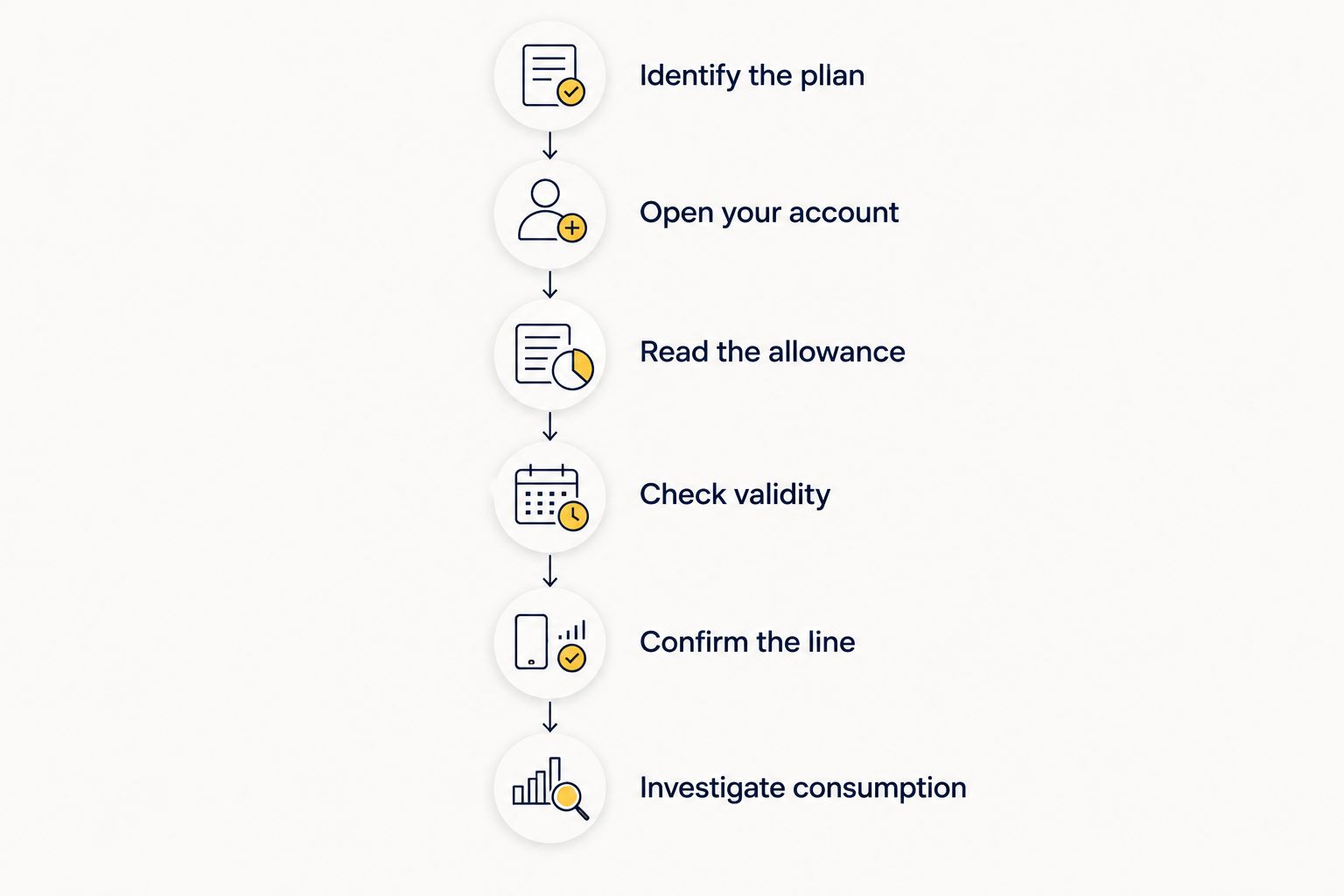
Follow this sequence in 2026:
- Identify the plan. Confirm which travel eSIM you bought and which account holds it. Use your order details if you have several installed profiles.
- Open your account. Sign in through your provider’s app or website. Find the active plan rather than an old purchase or a plan for another destination.
- Read the allowance. Look for remaining data, consumed data, or both. Keep the units attached to the figures.
- Check validity. Read the plan’s activation and expiry information separately from its data allowance.
- Confirm the line. Open your phone’s mobile network settings and verify that mobile data uses the intended travel eSIM.
- Investigate consumption. Review app-level mobile usage if the balance is lower than you expected.
These checks separate a depleted allowance from an expired plan or the wrong selected line. Do not delete the eSIM to investigate a balance problem; deleting an installed profile does not restore consumed data.
Why this matters
A working mobile connection does not tell you how much allowance remains. Signal bars describe your connection to a network, not your data balance. Likewise, a large usage figure in settings does not prove that your current travel plan is nearly empty.
The practical risk is acting on the wrong display. You might buy more data unnecessarily, overlook an approaching expiry, or keep using your home line instead of your travel eSIM. Confirm the account, plan and line before deciding what to do next.
Which method should you use in 2026?
Choose the display that answers your question. For remaining allowance, start with the provider; for the apps responsible for consumption, start with the phone.
| Method | Best for | What it tells you | Limitation |
|---|---|---|---|
| Provider app or account | Checking the plan allowance | Provider-reported balance, usage and plan details where displayed | The display depends on the provider; do not assume every reading updates instantly |
| iPhone mobile data settings | Investigating iPhone app usage | Mobile data recorded by the phone during its current measurement period | The period can differ from your travel plan’s dates |
| Android mobile data settings | Investigating Android app usage | Mobile data recorded for a selected period and, on supported devices, a selected SIM | Menu names and available controls differ by manufacturer |
The methods complement each other. A provider balance tells you what the account reports; an app list tells you where to look when consumption surprises you. Neither a phone counter nor a signal indicator replaces the plan’s terms and validity details.
Checking through your travel eSIM provider
Open the account used for the purchase, then find the plan attached to your current trip. If the account contains several destinations or past purchases, match the destination and purchase details before reading the balance. A familiar plan name alone is not enough when you have bought similar plans more than once.
A-sim travel eSIMs are best for travellers who want app-based usage management and top-ups. You can manage usage and top up through the app; A-sim offers global, regional and single-country travel eSIMs through its app or website.
The app-management benefit does not remove the need to check your phone’s selected data line. A-sim’s account tools and your handset’s settings serve different purposes: managing the travel plan and controlling which connection the phone uses.
Do not assume that an account screen is a live meter. If its information appears unchanged after use, refresh it and check for an update timestamp or explanatory note. Keep the displayed balance and plan validity together when deciding whether you need more data.
How to check eSIM data usage on an iPhone
On an iPhone in 2026, start in Settings, then open Cellular or Mobile Data, depending on the device’s language and region. Check which line is selected for mobile data before inspecting the usage information.
Scroll to the mobile data statistics and app list. The current-period figure describes recorded consumption, not the amount your provider has left available. An app’s figure helps identify activity such as streaming, photo uploads or navigation downloads.
- Check the selected line. Make sure mobile data uses the travel eSIM rather than your home SIM.
- Read the period. Look for the statistics reset information before comparing the counter with your trip.
- Inspect app usage. Find the apps responsible for the largest recorded consumption.
- Check switching settings. Review cellular data switching if you want to control which line supplies mobile data.
- Keep the evidence. Record the relevant figures before resetting statistics.
The iPhone’s current period does not automatically mean your current trip. If you never reset the statistics, the counter can include usage from before you installed the travel eSIM. Do not subtract that entire figure from a new plan’s allowance.
Resetting statistics starts a new local measurement period; it does not replenish your plan. For a future trip, record the provider balance and reset the phone’s statistics when you begin tracking. This creates a cleaner comparison without changing the provider’s accounting.
How to check eSIM data usage on Android
On Android in 2026, open Settings and look for Network & internet, Connections, or the equivalent mobile network section. Select the relevant SIM where that option exists, then open its mobile data usage information. Search settings for data usage if the menu names differ.
Check the measurement dates before reading the total. Android usage screens often use a billing cycle or selected date range, which need not match a travel eSIM’s activation date. A correct usage total for the wrong period is still the wrong basis for estimating your balance.
- Select the travel eSIM in the mobile network settings.
- Open mobile data usage rather than Wi-Fi usage.
- Match the displayed dates to the period you want to inspect.
- Review the app list for the biggest consumers.
- Check any configured data warning or limit.
A phone-side warning is a local control, not proof that the provider has reached the same threshold. Likewise, a handset data limit can stop mobile access independently of your plan balance. Inspect both places when the phone stops connecting unexpectedly.
The advantage of Android’s usage screen is app-level detail. Its limitation is device variation: do not follow another manufacturer’s menu path blindly. Use the settings search and confirm the selected SIM and dates before drawing a conclusion.
Why your eSIM data readings differ
Different counters do not automatically mean missing data. First establish whether they measure the same connection, activity and period.
- Different dates: Your phone’s current period or billing cycle can start before the travel plan activates.
- Different lines: Your settings can show another SIM’s usage, or a view that does not isolate the intended travel connection.
- Different measurements: Remaining allowance and consumed data are not interchangeable figures.
- Different units: Compare like-for-like units rather than treating MB and GB as the same quantity.
- Reporting timing: A provider display and a handset counter need not reflect recent traffic at the same moment.
- Background activity: App updates, cloud uploads and hotspot traffic can consume mobile data without an obvious foreground session.
For a useful comparison, write down the provider’s reading and the phone’s reading at the same time. Include the plan identifier, selected line and measurement dates. Those details make a discrepancy understandable instead of leaving you with two unexplained totals.
If the difference remains unexplained, contact the provider with those details. Describe what each screen measures rather than saying only that the numbers are wrong. Avoid resetting counters or deleting the profile before saving the information you need.
What should I do if my remaining data looks low?
Stop avoidable mobile traffic before deciding on a top-up. Move large downloads, software updates and cloud backups to a trusted Wi-Fi connection. Check whether a connected laptop or tablet is using your phone’s hotspot.
Then review the apps with the largest mobile usage. Disable mobile data for nonessential apps where your phone supports that control, or adjust their download and upload settings. Download maps or other travel materials over Wi-Fi before you need them outside.
Do not disable a tool you need for navigation or travel documents without an alternative. The aim is to reduce background and high-volume activity, not to make the phone unusable. Save essential booking details locally so checking them does not depend on a mobile connection.
If you need more allowance, check the current plan’s top-up options and validity terms. Do not assume that adding data extends its expiry or applies across every destination. Confirm those details before completing the purchase.
How can I tell which eSIM is using my data?
The selected mobile data line tells you which SIM the phone is configured to use. Open the mobile network settings, inspect that selection, and match it with the travel profile you installed. Line labels help, but verify them against your own setup rather than relying on a generic label such as secondary.
Keeping your home number active is different from selecting it for mobile data. If you use multiple lines, review switching and roaming settings separately. Do not change roaming controls indiscriminately: follow the instructions for the travel eSIM and manage your home line according to your home carrier’s terms.
Does a data counter include Wi-Fi use?
A mobile data counter measures cellular traffic, not ordinary Wi-Fi traffic. Make sure you are reading the mobile usage screen rather than a separate Wi-Fi usage view. Phone features that use mobile data when Wi-Fi connectivity is poor can complicate what you expected to be a Wi-Fi-only session.
If you want to verify that a task uses Wi-Fi only, turn off mobile data while completing it. Restore the intended travel line afterward and check the provider balance when you reconnect.
Can I calculate the remaining balance from data used?
You can subtract used data from a fixed allowance only when both figures refer to the same plan, period and units. A phone counter with unmatched dates does not provide a reliable substitute for the provider’s balance.
Use the provider’s displayed remaining allowance when available. If the account only shows consumed data, read the plan’s total allowance and terms before calculating a remainder. Do not apply this method to an unlimited plan as though it had a simple fixed data bucket.
FAQ
Where do I check eSIM data remaining?
Check eSIM data remaining in your provider’s app or account by opening the active travel plan. Use your phone’s mobile data settings to investigate consumption, not as a substitute for the provider’s remaining allowance.
Does my iPhone show how much travel eSIM data is left?
Your iPhone’s mobile data statistics show recorded consumption, not your provider’s remaining plan balance. Check the selected line and statistics period before comparing the phone’s figures with your account.
How do I check my eSIM usage on Android?
Open Android’s mobile network settings, select the travel SIM where supported, and find mobile data usage. Check the date range and app breakdown; menu names differ by manufacturer.
Why does my phone show more data used than my eSIM app?
Different measurement periods, selected lines, units or reporting times can explain different readings. Match those details before treating the difference as a billing problem.
Does resetting data statistics give me more eSIM data?
Resetting phone statistics does not add eSIM data or change the provider’s balance. It only starts a new local usage measurement period.
Can I manage my A-sim travel eSIM usage in the app?
A-sim supports travel eSIM usage management and top-ups through its app. Confirm the plan you are managing and separately check which line your phone uses for mobile data.
Why is my eSIM not working when I still have data left?
A remaining allowance does not establish that the plan is still valid or that the phone is using the correct line. Check expiry, destination coverage, network settings and the provider’s setup instructions before assuming the allowance is the problem.
One last thing
Save a baseline before your next trip. In 2026, the most useful habit is still simple: record the starting provider balance, the plan’s expiry and the phone’s statistics period before using travel data.
That baseline gives later readings context. Without it, an app list can tell you what consumed data, but an old phone counter cannot tell you how much belonged to this trip.