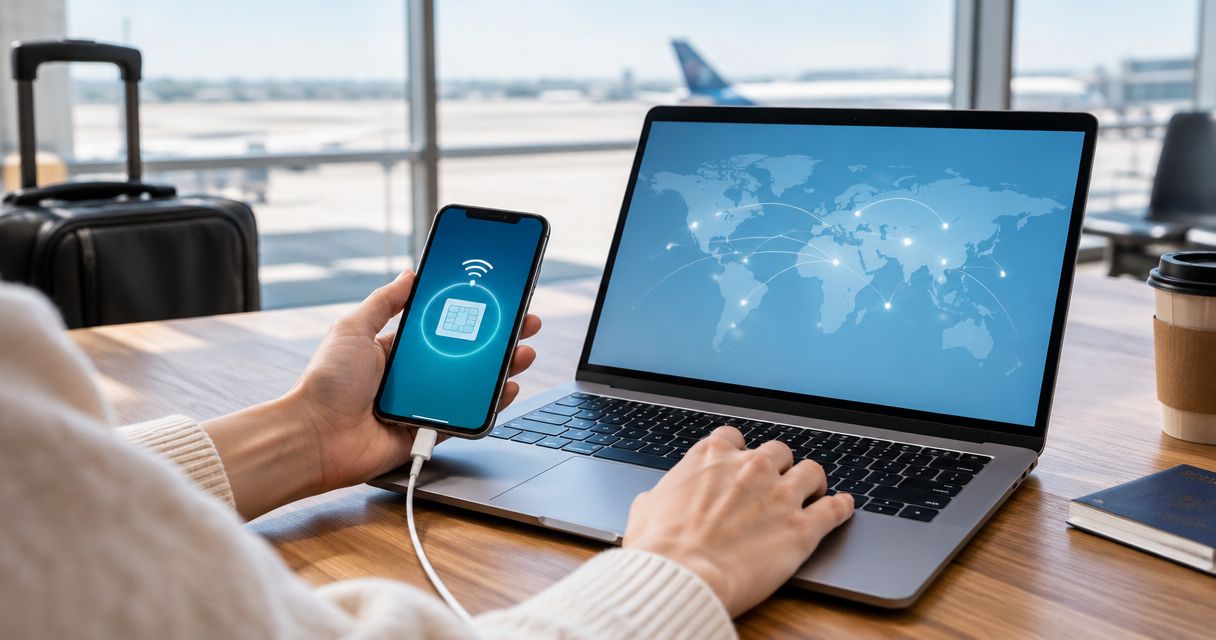
Instead of moving files to your phone whenever your laptop needs internet abroad, connect your Windows laptop to your phone’s hotspot, with your travel eSIM selected for mobile data. To connect eSIM to Windows laptop with A-sim, keep the eSIM on your compatible iPhone or Android phone and share its connection, provided your plan permits tethering.
- Use A-sim travel eSIM data through a phone hotspot when your plan permits tethering.
- To connect eSIM to Windows laptop, select the travel line before enabling your personal hotspot.
- Windows Wi-Fi support does not mean the laptop supports direct eSIM installation.
- Set the hotspot connection as metered to restrict some background downloads.
Why this matters
A phone hotspot lets a Wi-Fi-equipped Windows laptop use a mobile connection without installing an eSIM on the computer. The phone connects to the mobile network; the laptop connects to the phone. Those are separate connections, and either one can fail.
A-sim travel eSIMs are best suited to travellers who want phone-managed data, with laptop sharing where tethering is permitted. You can manage usage and top up through the app. The trade-off is that a phone hotspot depends on the phone’s battery, mobile signal and tethering permissions.
For your 2026 trip, choose the connection method before departure. A laptop having Wi-Fi does not establish that it has a cellular modem or supports direct eSIM installation.
Before you start
- Check the phone and plan. Use an eSIM-compatible, carrier-unlocked phone. Confirm that your travel plan covers your destination and permits personal hotspot use; eSIM support alone does not establish tethering permission.
- Prepare both devices. Have your installation instructions, account access, a working internet connection for setup, and a Windows laptop with Wi-Fi. Keep a charger nearby for longer sessions.
- Prevent the wrong-line surprise. On a dual-SIM phone, select the travel eSIM for mobile data and disable automatic switching to your home line. A connected hotspot does not tell you which SIM supplies its data.
Check the plan’s activation and validity rules before installing. Installation and the start of a plan’s validity are not always the same event, so follow the instructions for your specific plan rather than assuming the clock starts at arrival.
Choose your connection method
For this 2026 setup, a phone hotspot is the practical starting point. Android USB tethering is a useful alternative when Wi-Fi sharing is unreliable. Direct laptop eSIM installation is a separate workflow that needs explicit hardware and provider support.
| Connection method | Best for | Advantage | Limitation |
|---|---|---|---|
| Phone Wi-Fi hotspot | Travellers connecting a Wi-Fi-equipped Windows laptop | No laptop cellular modem required | Uses phone battery and depends on tethering permission |
| Android USB tethering | Travellers working beside their phone | Avoids the phone-to-laptop Wi-Fi link | Requires a data-capable cable and compatible Windows drivers |
| Direct laptop eSIM | Travellers with confirmed laptop and provider compatibility | Does not rely on a phone hotspot | Requires cellular hardware, eSIM support and a compatible profile |
Use the hotspot workflow unless direct Windows compatibility is explicitly confirmed for your laptop and plan. Do not scan a phone installation code into Windows simply because the laptop displays an eSIM option.
Travel data configuration
Start with the phone’s mobile connection. A hotspot cannot fix an inactive plan, an uncovered destination or a phone using the wrong data line.
- Install the travel eSIM. Follow the installation instructions supplied with your purchase. Keep internet access available during installation, and do not delete an existing working profile to troubleshoot a different one.
- Select the travel data line. On iPhone, open Settings, then Cellular, then Cellular Data, and select the travel eSIM. Some regional configurations use Mobile Data instead of Cellular.
- Disable home-line switching. On iPhone, turn off Allow Cellular Data Switching. On Android, select the travel SIM for mobile data and disable any setting that automatically switches data to another SIM; labels differ by manufacturer.
- Apply the plan’s roaming instructions. Enable Data Roaming on the travel line if the provider’s instructions require it. Keep data roaming disabled on your home line unless you deliberately intend to use it.
- Test mobile data alone. Once installation is complete, disconnect the phone from Wi-Fi and load a fresh webpage. Check that the travel line remains selected.
Expected result: the phone loads a new webpage over the travel eSIM’s mobile connection. If it does not, fix the phone connection before configuring Windows.
Leaving your home line enabled for calls or messages is separate from selecting it for data. Review those services with your home carrier; disabling data switching does not disable every service on that line.
Phone hotspot configuration
Use the branch matching your phone. The iPhone labels below follow Apple’s English interface; the Android example uses Google Pixel-style labels. Other Android phones place equivalent controls under different menus.
iPhone personal hotspot
- Open Settings, then Personal Hotspot. If necessary, look under Cellular for Personal Hotspot.
- Turn on Allow Others to Join.
- Open Wi-Fi Password and set a password you can enter on the laptop. Apple requires at least 8 characters using supported ASCII characters; avoid accented characters in this password.
- Note the phone’s name. That is the network name Windows will display.
- Keep the Personal Hotspot screen open while connecting the laptop for the first time.
Expected result: Windows can discover the iPhone’s hotspot name. Discovery confirms the local Wi-Fi link is available, not that the travel plan has internet access.
Android Wi-Fi hotspot
- On a Pixel-style interface, open Settings, then Network & internet, then Hotspot & tethering.
- Select Wi-Fi hotspot.
- Review Hotspot name and Hotspot password. Use a secured hotspot rather than an open network.
- Turn on Use Wi-Fi hotspot.
- Keep the phone nearby while connecting Windows. If the phone offers automatic hotspot shutoff, review that setting before a longer session.
Expected result: the laptop sees the hotspot name and requests its password. If your Android phone uses different labels, search its settings for hotspot rather than copying an unrelated menu path.
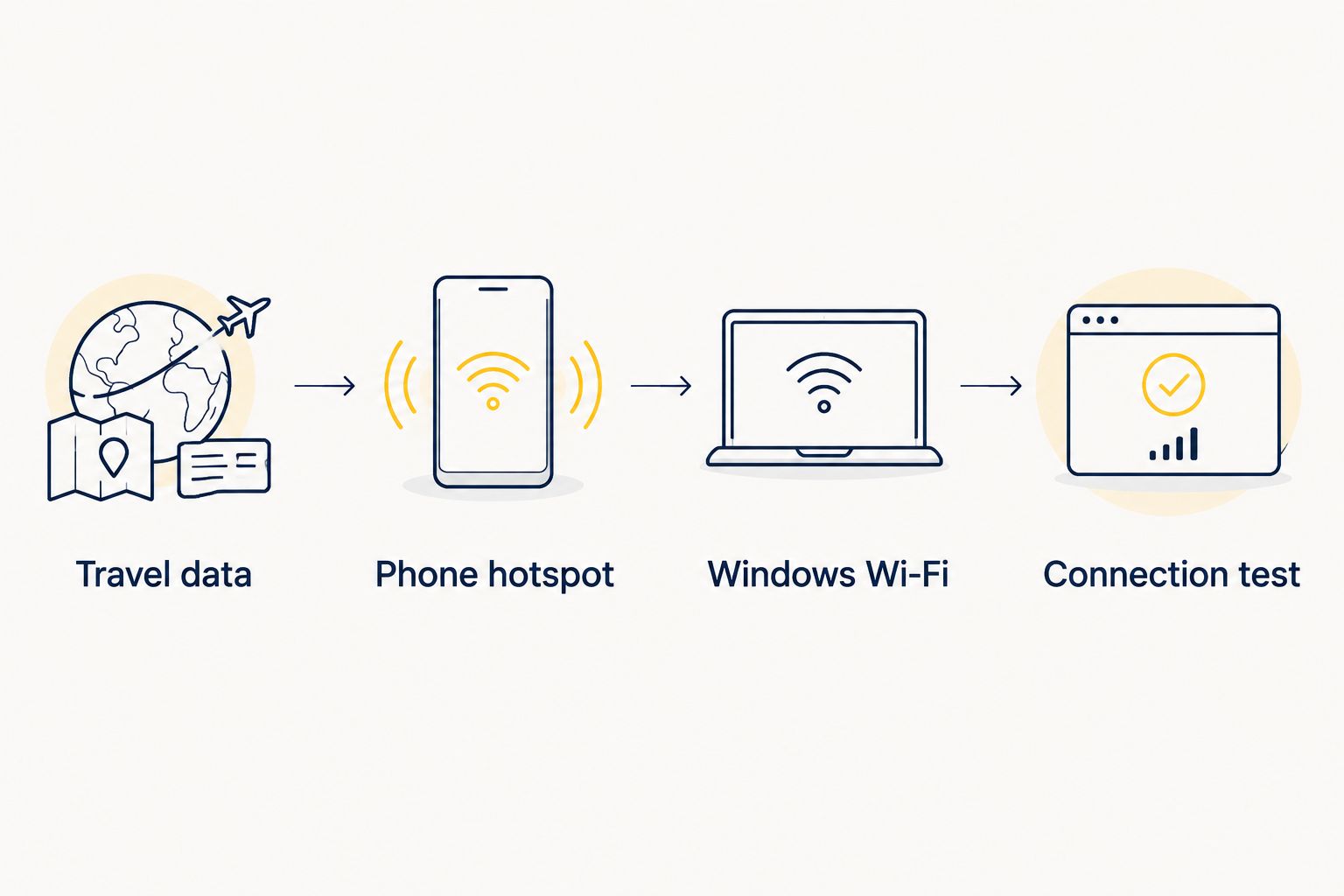
The connection follows a simple sequence: Travel data, Phone hotspot, Windows Wi-Fi, then Connection test. Test each stage in that order so you know which part needs attention.
Windows connection and data controls
These instructions use Windows 11’s English interface for your 2026 setup. On a managed work laptop, your organisation can restrict network settings; ask your IT team before changing security controls.
- Open the network picker. Select the network, sound or battery area on the taskbar. Open the available networks beside Wi-Fi.
- Join your phone. Select the hotspot name, choose Connect, enter the password, and select Next. Enable Connect automatically only if you want this laptop to reconnect whenever that hotspot is available.
- Verify internet access. Load a fresh webpage on Windows. Do not use a previously opened page as your only test, because cached content can appear without a working connection.
- Set the connection as metered. Open Settings, Network & internet, Wi-Fi, then Manage known networks. Select the hotspot network and turn on Metered connection.
- Review background activity. Pause large cloud synchronisations, game downloads and nonessential transfers before starting work. Resume necessary updates on a connection suitable for those downloads.
- Check the network profile. In the hotspot’s network properties, use Public unless you specifically need trusted local-device discovery. A public profile limits discoverability; it does not replace your organisation’s security requirements.
Expected result: Windows loads a new webpage through the phone, and the saved hotspot network shows Metered connection enabled.
A metered connection restricts some background activity, but it is not a hard data cap. Browsers, video meetings and individual applications still transfer data. Check the app’s usage view rather than assuming Windows has stopped every background download.
For a useful 2026 pre-departure check, repeat the complete sequence before you need the connection for work. If the plan cannot connect until you reach its covered destination, test hotspot discovery separately and finish the mobile-data test after arrival.
Alternative: Android USB tethering
Best for working beside your phone: Android USB tethering removes the Wi-Fi link between the phone and laptop. It still uses the same mobile connection and still requires tethering permission.
- Confirm that the Android phone can load a fresh webpage using the selected travel data line.
- Connect the phone to Windows with a USB cable that supports data, not just charging.
- On a Pixel-style interface, open Settings, Network & internet, then Hotspot & tethering.
- Turn on USB tethering. The control normally becomes available after a suitable USB connection is detected.
- Allow Windows to recognise the network connection, then test a fresh webpage.
- Review the new connection’s properties in Windows and enable Metered connection where available.
Expected result: Windows has internet access over the USB network connection without joining the phone’s Wi-Fi hotspot.
USB tethering does not improve the mobile network itself. If the phone has weak reception, changing the laptop connection from Wi-Fi to USB leaves that problem unchanged. Windows also treats USB tethering as a different connection, so do not assume the Wi-Fi hotspot’s metered setting carries over.
Troubleshooting
The hotspot does not appear in Windows
Check that the phone’s hotspot and the laptop’s Wi-Fi are enabled, then move the devices closer together. On iPhone, keep Personal Hotspot open during discovery.
If the laptop cannot detect the hotspot’s Wi-Fi band, use a compatible band. Android phones that expose band controls often offer 2.4 GHz and 5 GHz options. On supported iPhones, try Maximize Compatibility; the trade-off can be reduced Wi-Fi performance.
Windows connects, but there is no internet
Disconnect the phone from Wi-Fi and test mobile data directly on the phone. If that fails, check the selected data line, destination coverage, plan validity and the provider’s roaming instructions.
If the phone works but Windows does not, confirm tethering permission and restart the hotspot. Keep a required work VPN enabled unless your IT team authorises a diagnostic change.
Windows rejects the hotspot password
Recheck the password displayed on the phone, including letter case. In Windows, open Manage known networks, select the saved hotspot and choose Forget, then reconnect using the current password.
For an iPhone hotspot, remove unsupported password characters. Changing the password also means other devices must reconnect with the new one.
The connection drops during work
Check the phone’s battery, hotspot timeout settings and mobile signal. Keep the phone powered and avoid enclosing it somewhere that traps heat.
If only the laptop loses access while the phone still works, reconnect Windows to the hotspot. For Android, test USB tethering to separate a Wi-Fi problem from a mobile-network problem.
The data balance falls unexpectedly
Check Windows downloads, cloud uploads, streaming and other devices joined to the hotspot. Turn on Metered connection, pause unnecessary transfers and disconnect devices you are not using.
Changing hotspot passwords removes easy access for devices using the old password. It does not stop downloads on your own connected laptop, so inspect application activity as well.
Customize your workflow
Build your 2026 travel routine around the work you actually need to complete. Email and document editing need different preparation from uploading media or joining video meetings: download essential files beforehand, close unused streaming tabs, and pause synchronisation you do not need during the session.
For a fuller phone-sharing walkthrough, use the guide to turn your phone into a hotspot for your laptop. Keep the travel data line selected each time you reconnect, particularly after changing SIM settings or crossing into another destination.
Use the A-sim app to monitor usage and top up when needed. Treat Windows’ connection settings as controls on laptop behaviour, not as a substitute for checking your remaining travel data.
FAQ
How do I connect eSIM to Windows laptop abroad?
Install the travel eSIM on a compatible phone, select it for mobile data, and connect Windows to the phone’s hotspot if the plan permits tethering. Test mobile data on the phone before testing the laptop.
Can I install an A-sim eSIM directly on my Windows laptop?
Use direct installation only after confirming support for both your exact laptop and your A-sim plan. A Windows eSIM menu alone does not establish that a phone-oriented profile is compatible.
Does my laptop need eSIM support to use a phone hotspot?
No, a laptop needs Wi-Fi support to join a phone’s Wi-Fi hotspot. The eSIM stays on the phone, which supplies the mobile connection.
Will my hotspot use my home SIM or my travel eSIM?
The hotspot uses the phone’s selected mobile-data connection. Select the travel eSIM and disable automatic data switching to prevent an unintended switch to your home line.
Is USB tethering better than a Wi-Fi hotspot?
Android USB tethering is better suited to avoiding a problematic phone-to-laptop Wi-Fi link. It needs a data-capable cable and compatible drivers, and it does not fix weak mobile reception.
Why does Windows say connected without internet?
Windows can connect to a hotspot even when the phone has no usable mobile internet. Test the phone with Wi-Fi disconnected, then check the travel line, coverage, validity and tethering permission.
Does a metered connection stop all laptop data use?
No, a metered connection restricts some background transfers but does not stop every application. Pause unnecessary downloads and monitor your travel data usage separately.
One last thing
A working hotspot is not proof that the correct SIM is supplying data. Before a long laptop session, check the phone’s selected data line—not just Windows’ connected status. Make that your final check each time you reconnect during your 2026 trip.